
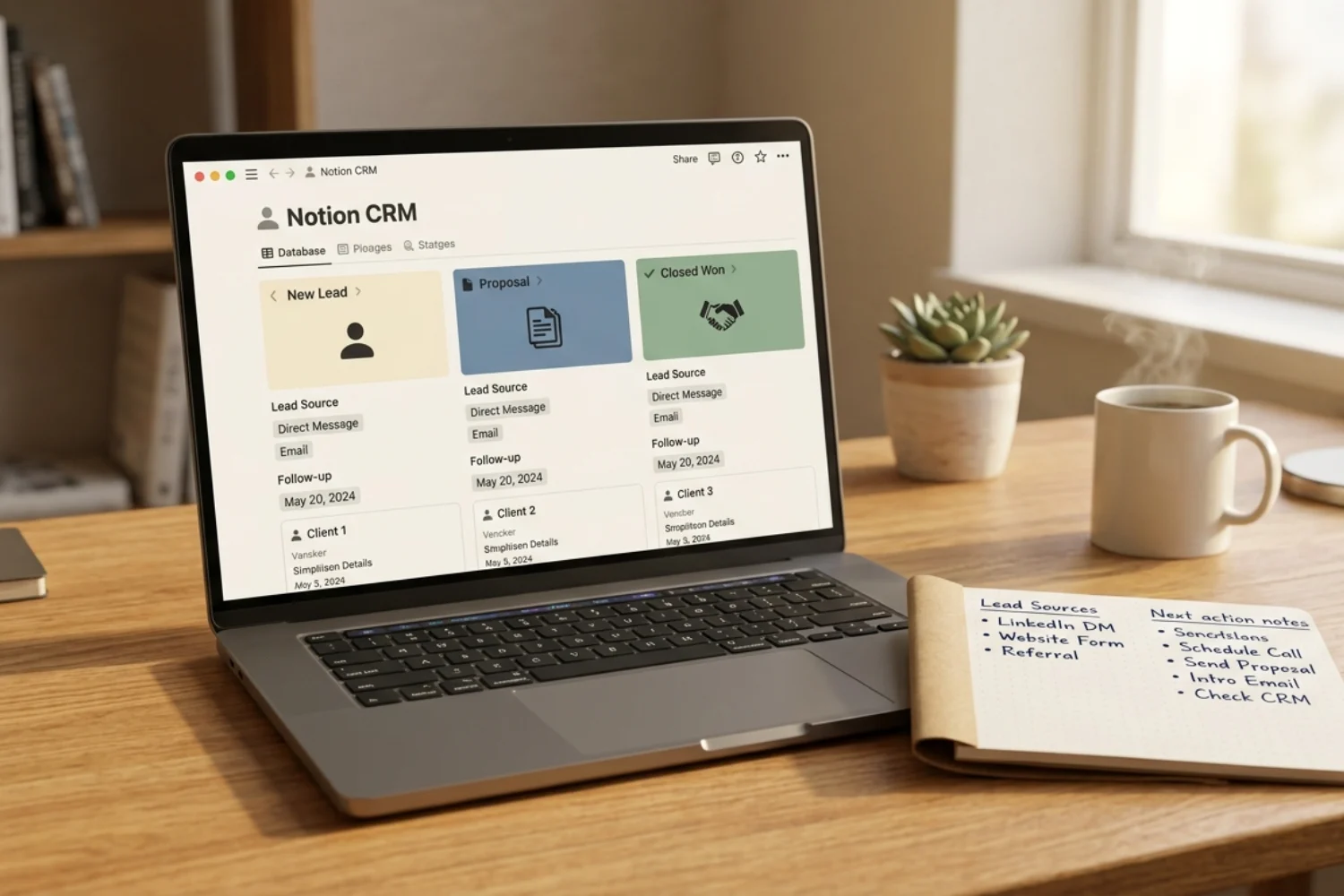
Most people install a CRM template, add a few leads, and feel organized for one week. Then the same problems return. Stages feel wrong. Follow-ups hide in notes. Lead sources get forgotten. Client records mix sales notes, project notes, invoices, and random reminders in one messy place.
That is why learning how to customize your CRM matters more than finding a perfect template. A good Notion CRM gives you the base. Customization makes the base match your real sales process.
This guide shows a practical way to customize CRM in Notion without rebuilding everything. The goal is not a giant system. The goal is a clean Notion CRM workflow where every lead has a next step, every client has context, and every view answers one business question.
Start with the right mindset
A CRM is not a decoration. It is a decision system. If a field does not help you decide who to contact, what to send, what to price, or what to improve, remove it.
Before touching properties or views, write your real sales process in plain language. For a solopreneur, it might look like this:
- New lead arrives from content, referral, Gumroad, or a form.
- You qualify the lead.
- You send a message or book a call.
- You send a proposal or checkout link.
- The lead pays, pauses, or disappears.
- You start client delivery.
- You ask for feedback, testimonial, or referral.
That is your CRM map. Not the template. Not someone else’s funnel. Your actual sequence.
If you use Fayedtion CRM Basic or CRM V.2, keep the original system intact at first. Duplicate the template, rename the copy, then edit the copy. CRM Basic is the free starter path. CRM Freelancer is the paid upgrade for project-based solo work. CRM Team is the paid upgrade for shared pipelines, handoffs, and multiple people touching the same sales board.
What to customize first
Not every part of a CRM deserves attention on day one. Start with the pieces you use every week:
- Pipeline stages
- Lead source
- Next follow-up date
- Client type
- Deal value
- Priority
- Views for today, hot leads, and won clients
- Lead profile template
Leave advanced formulas, rollups, automations, and reporting until the system has real data. Premature complexity makes a CRM feel impressive but harder to maintain.
Step 1: Define your sales process
Open a blank note and list the path a stranger takes before becoming a customer. Use verbs, not labels.
Bad version:
- New
- Contacted
- Proposal
- Won
- Lost
Better version:
- Captured lead
- Qualified fit
- Follow-up needed
- Proposal sent
- Waiting for reply
- Won client
- Lost or archived
The better version tells you what happened and what should happen next. That matters because a CRM stage should trigger behavior. If a lead is in “Follow-up needed,” you know the next action. If a lead is in “Waiting for reply,” you know the next review date matters.
For Notion CRM template customization, keep stages under eight. More than eight stages usually means you are tracking emotional states instead of business steps. A solopreneur CRM should feel fast.
Step 2: Rename pipeline stages around action
Now edit the Status property or pipeline select property in your Notion CRM.
Use stage names like:
- New lead
- Qualified
- Contacted
- Follow-up due
- Proposal sent
- Won
- Lost
- Archived
Avoid vague stages such as “Maybe,” “Interesting,” or “Later.” They invite indecision. A lead belongs in a stage because something specific has happened.
If you sell templates, services, and consulting, use one pipeline at first. Add a “Lead type” property instead of creating three separate pipelines. This keeps the system simple while still letting you filter.
Recommended lead type options:
- Template buyer
- Freelance client
- Consulting lead
- Partnership
- Affiliate
- Support request
This setup helps CRM template Basic stay light. If you later need separate service pipelines, CRM Freelancer or CRM Team becomes a more logical paid upgrade.
Step 3: Add lead source fields
Most CRMs lose attribution first. You remember the hot lead. You forget where the lead came from. Three months later, you have no idea whether YouTube, SEO, referrals, Gumroad, or newsletter links produced the best clients.
Add a select property named “Lead source.”
Useful options:
- Blog SEO
- YouTube
- X
- Newsletter
- Gumroad
- Referral
- Cold outreach
- Notion Marketplace
- Direct message
- Other
Then add a text or URL field named “Source detail.” This is where you paste the exact post, article, campaign, referral name, or landing page.
The pair matters. Lead source gives broad reporting. Source detail gives the story. If three clients came from one blog article, you want to see it.
For how to customize your CRM template around growth, lead source is the first field to add. Without it, you are guessing which marketing channel deserves time.
Step 4: Add follow-up dates and next actions
A CRM without follow-up dates is a contact list. The easiest upgrade is a date property named “Next follow-up” plus a text property named “Next action.”
Examples:
- Send pricing page
- Ask about team size
- Share CRM V.2 walkthrough
- Follow up on proposal
- Send invoice reminder
- Ask for testimonial
Next follow-up tells you when. Next action tells you what. Together, they remove the daily question: “Who should I contact today?”
Create a filtered view named “Today follow-ups.”
Filter logic:
- Status is not Won
- Status is not Lost
- Next follow-up is today or before today
Sort by priority, then deal value.
This one view often changes the whole CRM. Instead of opening the full database and scanning 100 records, you open one view and work the list.
Step 5: Customize client type and deal value
Not every lead deserves the same attention. A $49 template buyer, a $500 consulting lead, and a $5,000 agency project should not sit in the same priority lane without extra context.
Add these properties:
- Client type
- Deal value
- Product interest
- Priority
Client type options:
- Solo founder
- Freelancer
- Creator
- Real estate agent
- Agency
- Small team
- Existing customer
Product interest options:
- CRM Basic
- CRM Freelancer
- CRM Team
- Business Pack
- Automation OS
- Custom service
Deal value should be a number field. Use realistic estimates, not dream numbers. If a lead has no clear value yet, leave it empty until qualified.
Priority options:
- Low
- Medium
- High
- Urgent
A strong CRM does not make every lead feel equal. It helps you protect attention for the best opportunities while still keeping smaller leads organized.
Step 6: Build filtered views for real work
Views are where a custom CRM template Notion setup becomes useful. Do not create views for aesthetics. Create views for decisions.
Start with these five:
Today follow-ups
Use this view every morning. It should show only leads with a follow-up date due today or earlier.
Columns to show:
- Name
- Status
- Next action
- Next follow-up
- Priority
- Deal value
Hot leads
Use this view when you have limited time and want the highest-value opportunities.
Filter:
- Priority is High or Urgent
- Status is not Won
- Status is not Lost
Proposal sent
Use this view to avoid losing deals after pricing goes out.
Filter:
- Status is Proposal sent
Add fields:
- Proposal date
- Follow-up date
- Deal value
- Notes
Won clients
Use this view for delivery and relationship follow-up.
Filter:
- Status is Won
Add fields:
- Product purchased
- Project status
- Testimonial requested
- Referral opportunity
Source review
Use this view weekly or monthly.
Group by Lead source. Sort by deal value or won date. This shows which source creates meaningful revenue, not empty attention.
Step 7: Build a CRM template dashboard
A dashboard should reduce clicks. It should not become another page you decorate and forget.
A clean Notion CRM dashboard needs four blocks:
- Today follow-ups
- Hot leads
- Recent new leads
- Won clients this month
Below those, add a small “Review questions” section:
- Which lead source brought the best opportunity this week?
- Which proposal needs a follow-up?
- Which won client deserves a testimonial request?
- Which stale lead should be archived?
- Which CRM field is no longer useful?
If you run a solo business, this dashboard replaces daily CRM template checking. If you run a team, CRM Team makes more sense because each person needs ownership, handoff notes, and shared pipeline accountability.
Step 8: Create a lead profile template
A database template saves time and keeps records consistent. Create one template named “New lead profile.”
Inside the CRM template , add sections like this:
Snapshot
- Lead source:
- Product interest:
- Problem:
- Budget:
- Timeline:
- Decision maker:
Conversation notes
Add dated notes after every call, message, or email exchange.
Next action
Write the next action in one sentence. If it needs a date, set the Next follow-up field too.
Offer fit
Choose one:
- CRM Basic fits now
- CRM Freelancer fits later
- CRM Team fits team workflow
- Needs custom service
- Not a fit
Links
Paste source pages, checkout links, proposal links, shared docs, or meeting notes.
This profile turns a lead page into context, not clutter. When you open a lead after two weeks away, you should know where the conversation stands in under 30 seconds.
Step 9: Decide when to upgrade from free to paid
Free templates work best when the workflow is still simple. Upgrade when the limitation is costing money or time.
Stay on CRM Basic or CRM V.2 if:
- You work alone
- You track fewer than 100 active leads
- You need a simple pipeline
- You do not need team handoffs
- You want fast setup
Move to CRM Freelancer if:
- You sell services or projects
- Clients need project records after the sale
- You want client notes, tasks, deliverables, and invoices closer together
- You need a freelancer-focused CRM, not a generic sales board
Move to CRM Team if:
- More than one person touches leads
- Leads need owners
- Handoffs matter
- Team follow-ups get missed
- You need shared reporting
Paid systems should solve friction you already feel. Do not upgrade because a sales page looks better. Upgrade because your current CRM is slowing down revenue, delivery, or follow-up.
Common CRM template customization mistakes
Mistake 1: Adding too many fields
Every extra field adds friction. If a field is not used in a view, filter, dashboard, or decision, remove it.
Mistake 2: Tracking feelings instead of actions
Stages like “Warm,” “Maybe,” and “Interesting” sound helpful, but they rarely explain the next step. Use stages tied to action: contacted, proposal sent, follow-up due, won, lost.
Mistake 3: Mixing sales and delivery too early
Sales records and project delivery records have different jobs. Keep the CRM template focused on lead movement. Once a lead becomes a client, connect it to project delivery if needed.
Mistake 4: Forgetting source detail
A broad source like “Instagram” is useful. The exact post or DM thread is better. Add source detail so you know which content or campaign produced demand.
Mistake 5: Building for a future team before one exists
Solo CRMs should stay simple. Team fields such as owner, department, handoff status, and review stage matter later. Add them when people join the process.
Mini CRM audit before publishing the template
Before you share the CRM template with a client, teammate, or future version of yourself, run a quick audit. This keeps the setup useful after the first week.
Audit question 1: Does every lead have a next action?
Open the full leads database and scan for empty Next action cells. Empty next actions mean the record is parked, not managed. Add a next action or archive the lead.
Audit question 2: Does every active lead have a follow-up date?
If a lead is active, it needs a date. If the lead does not deserve a date, move it to Lost, Archived, or Nurture. The CRM should separate active opportunities from stored contacts.
Audit question 3: Are stages tied to behavior?
Each stage should answer one question: what should happen next? If a stage does not change your behavior, merge it with another stage. A smaller pipeline beats a confusing one.
Audit question 4: Are source fields filled for won clients?
Won clients are your best marketing data. Check Lead source and Source detail for every paid client. This tells you which content, referral, or channel deserves more attention.
Audit question 5: Is the dashboard useful in under 60 seconds?
Open the dashboard and ask whether it tells you who to contact today, which deals matter most, and which proposals need a reply. If not, simplify the dashboard until those three answers sit at the top.
Run this audit once a month. A CRM gets messy because the business changes, not because the template is bad. Monthly cleanup keeps your Notion CRM customization aligned with real sales work, real clients, and real follow-ups.
FAQ
Q1: How do I customize my CRM in Notion?
Start by writing your real sales process. Rename pipeline stages around actions, add lead source, add next follow-up, add next action, then build views for Today follow-ups, Hot leads, Proposal sent, and Won clients. Keep the first version simple.
Q2: What fields should I add to a Notion CRM?
Start with Lead source, Source detail, Next follow-up, Next action, Client type, Product interest, Deal value, and Priority. Add advanced fields only after you know how you will use them in a view or dashboard.
Q3: Should I start with a free CRM template or build from scratch?
Start with a free CRM template if you want speed. CRM Basic or CRM V.2 gives you the base structure, then you customize the details. Build from scratch only if you already know your exact sales process and enjoy database setup.
Q4: When should I upgrade from a free CRM to a paid CRM?
Upgrade when the pain is clear. CRM Freelancer fits solo client work with projects and deliverables. CRM Team fits shared pipelines, lead owners, handoffs, and team follow-up. Stay free while the CRM still handles your current workflow cleanly.
Q5: Is Notion good for CRM customization?
Yes, Notion works well for CRM customization because databases, views, filters, templates, and dashboards are flexible. It is strongest for solopreneurs, freelancers, creators, and small teams who want control over their workflow without adopting a heavy sales platform.
Key takeaways
- Learning how to customize your CRM is more useful than chasing a perfect template.
- Start with CRM Basic or CRM V.2 if you want a free, clean base.
- Customize stages first, then add lead source, follow-up date, next action, client type, and deal value.
- A good Notion CRM workflow needs views for Today follow-ups, Hot leads, Proposal sent, and Won clients.
- Add a lead profile template so every new record has the same structure.
- Upgrade to CRM Freelancer for paid solo client work and CRM Team for shared team pipelines.
- Keep fields tied to decisions. If a property does not support action, remove it.