

Your automations are running. But you have no idea which ones are about to break.
You built 30 workflows. Sometimes more. They publish your content, sync your databases, send your alerts, and back up your data.
Until one breaks. And you have no idea which one. Or why. Or for how long.
Most builders learn about a broken workflow when a client emails. Or when a sync stops writing rows. Or when the Stripe charge meant to trigger a delivery flow ends up as a refund. An automation workflow management system fixes the gap. One Notion hub. Every workflow tracked. Every error logged. Every credential mapped.
This guide breaks down what an automation workflow management system is, why scattered automation stacks break, and how to build one in Notion to monitor, debug, and maintain every workflow you run.
Table of Contents
What You’ll Learn
What Is an Automation Workflow Management System?
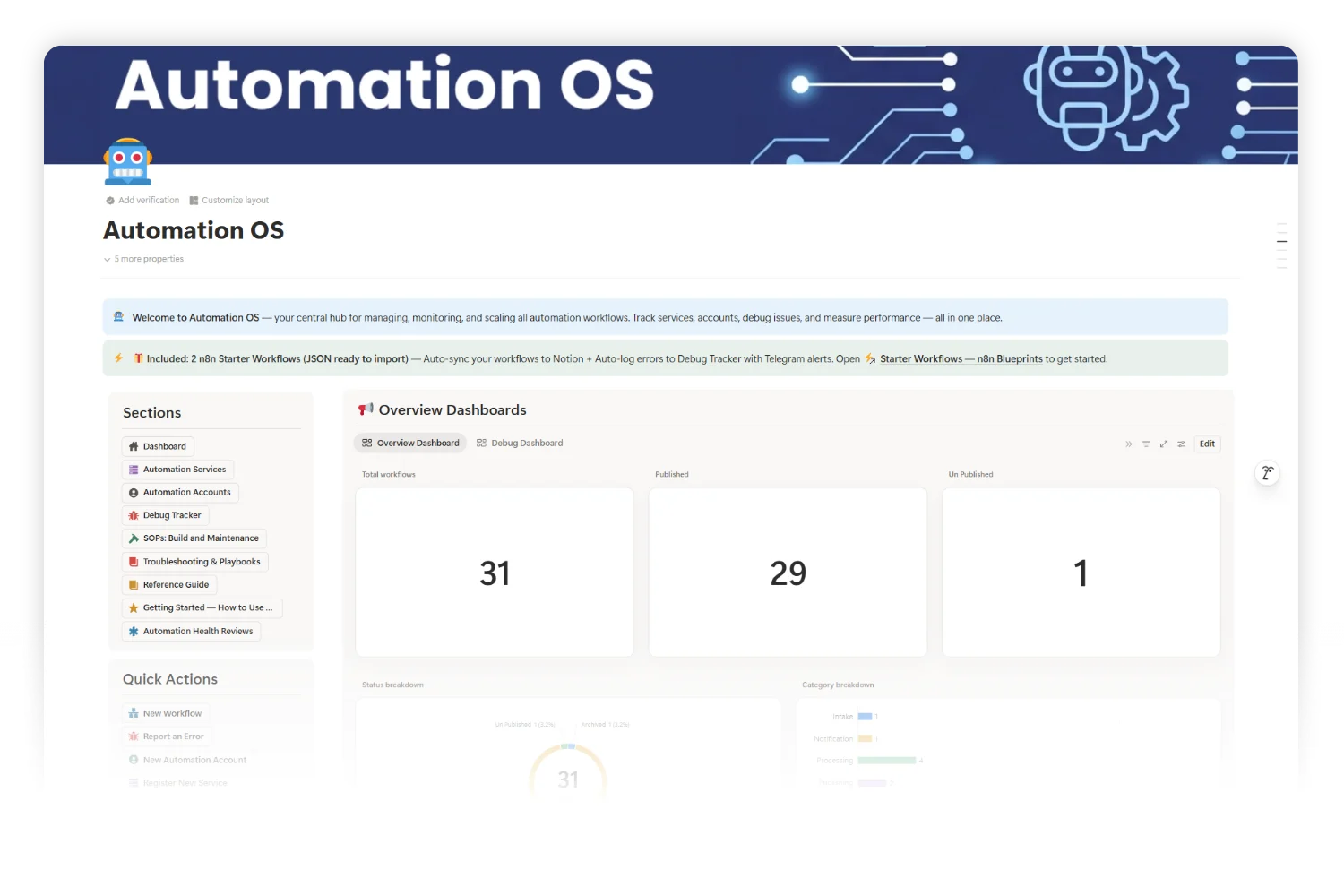
An automation workflow management system is the operations layer above your automation tools. It tracks every workflow you run, every credential you depend on, every error you hit, and every review cycle you complete.
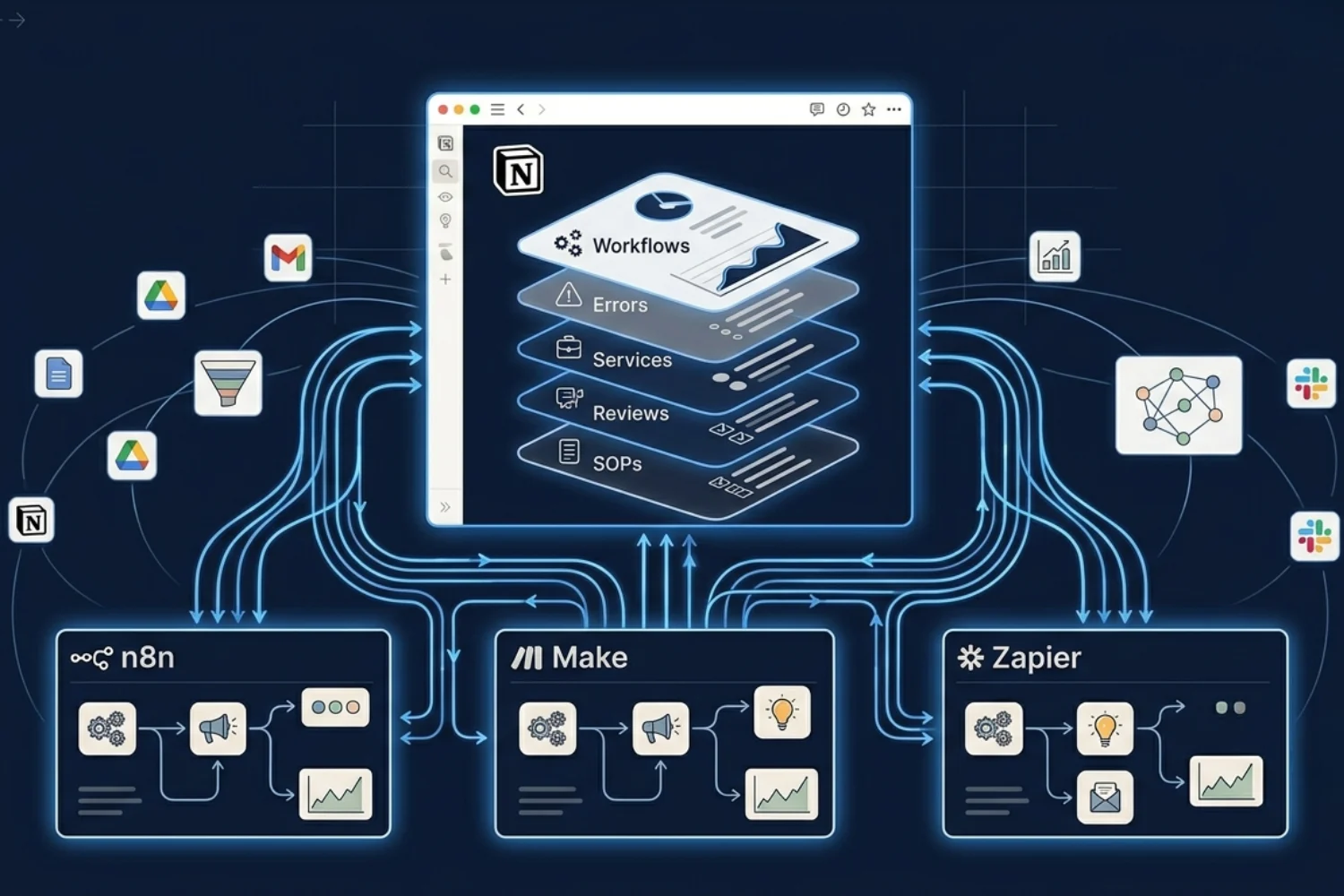
Think of it like a control tower. Your automation platforms (n8n, Make, Zapier, custom scripts) are the planes. The management system is the airport.
- Every workflow has a status, owner, category, and SLA target
- Every error has a severity, a fix path, and a documented playbook
- Every service has a hosting plan, cost, and linked accounts
- Every review cycle generates a health score and action items
Without this layer, your automation stack runs on hope. With it, you run on data.
Why Scattered Automation Stacks Break
Three quiet failures hit every builder who passes 10 workflows:
- Silent breakage. A token expires at 2 AM. The workflow keeps firing into the void for three days before anyone notices.
- Credential drift. You rotated a Google API key three months ago. Two workflows still reference the old credential. Both fail intermittently with no clear pattern.
- Documentation rot. The intern who built the lead sync left in May. The workflow still runs, but nobody remembers what triggers it, where it writes, or why it skips Tuesdays.
Each failure mode compounds. The more automations you build, the worse the management debt gets. A workflow monitoring dashboard solves all three by making state visible.
The 5 Layers of a Healthy Automation Workflow Management System
Every effective automation OS has five layers. Skip one and the whole structure leaks.
Layer 1: Workflow Command Center
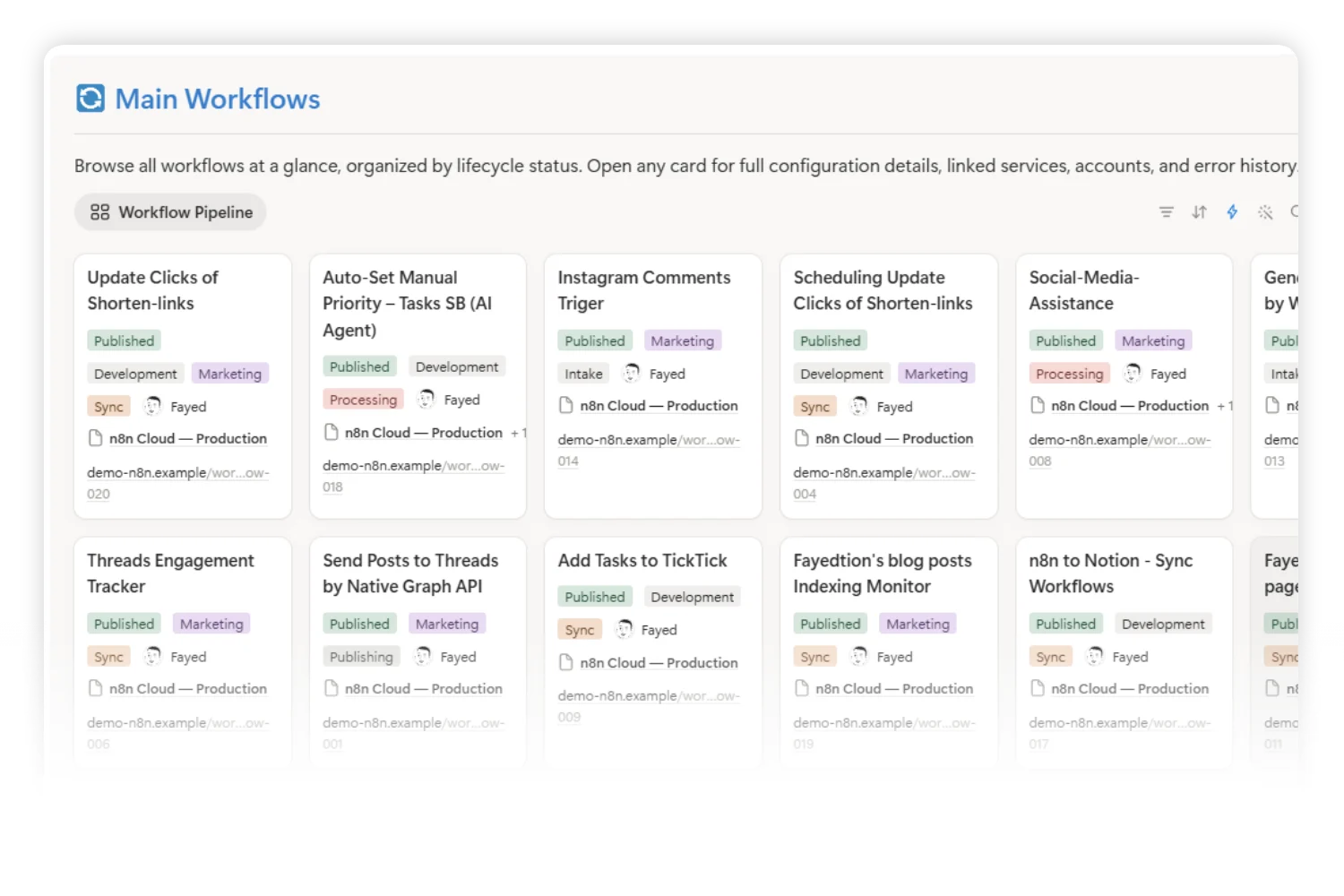
Goal: One database listing every workflow you run, regardless of platform.
Properties to track:
- Name and description
- Platform (n8n, Make, Zapier, custom)
- Status (Live, Development, Paused, Retired)
- Owner
- Category (Lead sync, Content publish, Data backup, and so on)
- SLA target (response time, success rate)
- Last successful run
- Linked services and credentials
Key metric: SLA breach rate per category.
Layer 2: Error Tracking and Alerts
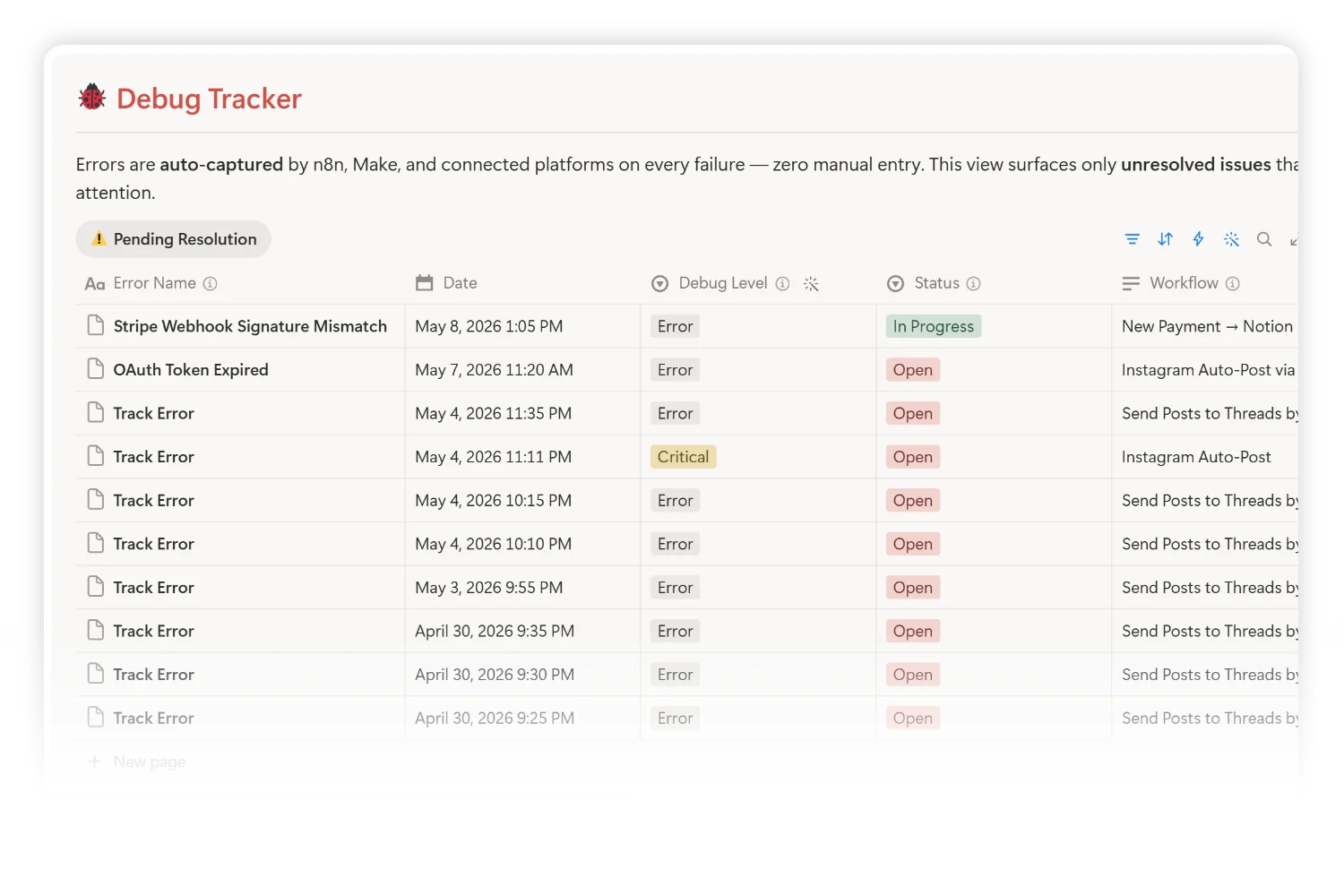
Goal: Every failure logged automatically with full context.
Required fields per error:
- Source workflow (relation)
- Error name and message
- Severity (Critical, Error, Warning, Info)
- Direct link to the failed execution
- Assigned status (New, Triaging, Fixing, Resolved)
- Resolution notes
Best practice: Pipe errors from your platform into Notion via a dedicated capture workflow. One n8n workflow logs every failure to the Debug Tracker and pings Telegram with severity and link.
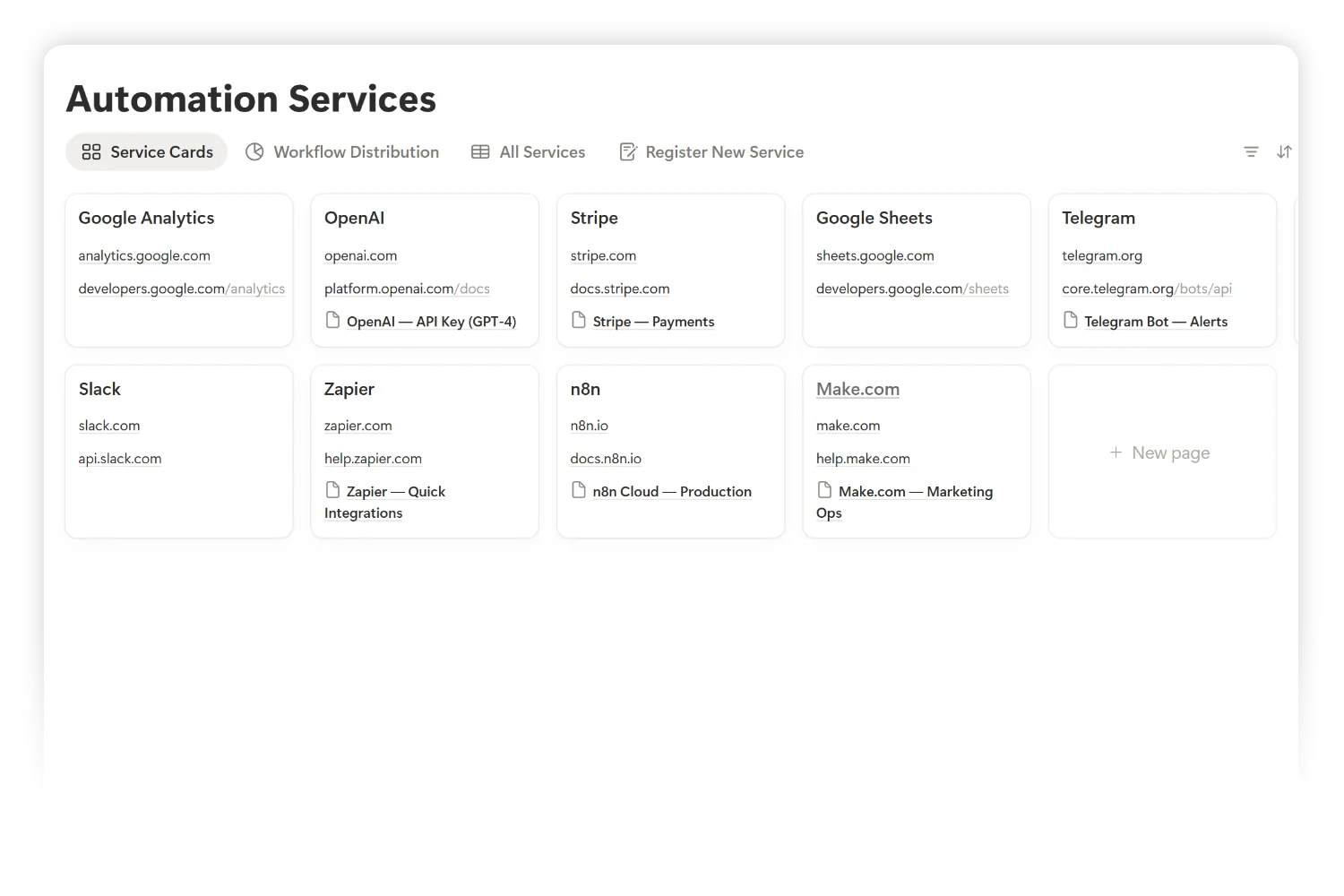
Layer 3: Service and Credential Registry
Goal: Every external service mapped to its credentials, hosting plan, monthly cost, and linked workflows.
Properties to track:
- Service name (n8n, Stripe, Postmark, Google API, and so on)
- Account email or workspace
- Credential type (API key, OAuth, Bearer token)
- Rotation due date
- Hosting (cloud, self-hosted, VPS)
- Monthly cost
- Linked workflows (relation)
Why it matters: When a workflow breaks, you trace the chain in seconds. Workflow to Service to Credential to Owner. Without the registry, debugging is a treasure hunt.
Layer 4: Health Reviews and Maintenance Cycles
Goal: A repeatable rhythm for catching issues before they cascade.
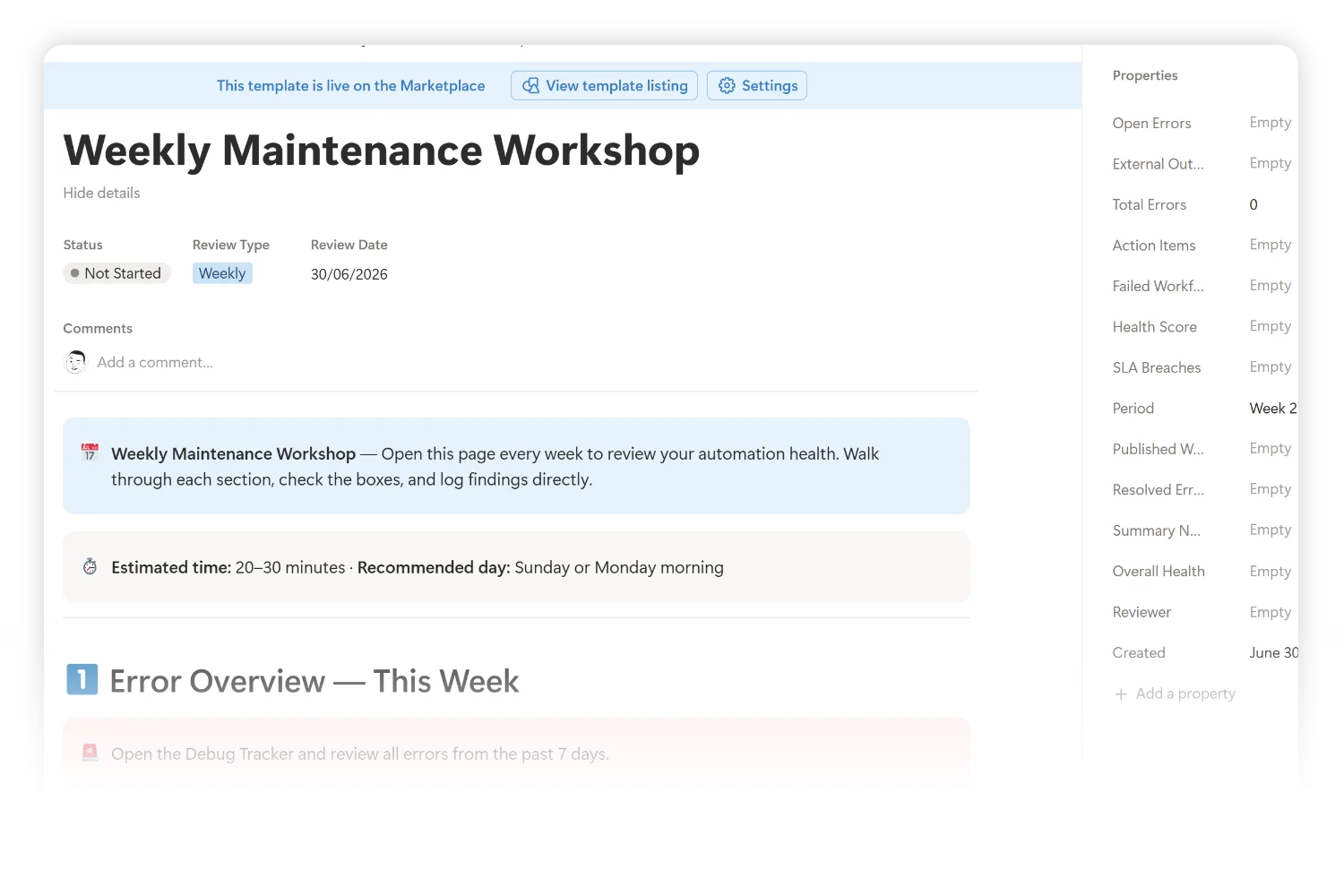
Cycle structure:
- Weekly maintenance (20 to 30 min): Clear the debug queue, review open errors, check SLA compliance, retire stale workflows.
- Monthly health check (45 to 60 min): Trend analysis on error frequency, cost review, data gap audit, credential rotation check.
- Quarterly retrospective (90 min): Workflow lifecycle review, archive retired automations, plan the next quarter.
Output per cycle: A health score, a list of action items, and a delta versus the prior period.
Layer 5: SOPs, Playbooks, and Rollback Procedures
Goal: Documented response paths for every common failure.
Minimum playbook set:
- Build SOP (how to create a new workflow)
- Error triage decision tree (severity-based)
- Rollback procedures (per platform: n8n, Make, Zapier)
- Common error patterns and documented fixes (token expiry, rate limiting, sync duplicates, external outages)
- Incident template (for outages serious enough to write up)
The rule: If a fire happens twice, write it down. Future-you will not remember the fix from last time.
How to Build Your Automation Workflow Management System in Notion
Five layers sound heavy. Build them one at a time. The Workflow & Automation OS template gives you the full structure on day one.
Step 1: Map Your Stack
List every workflow you currently run. Spreadsheet, sticky notes, the format does not matter. For each one, capture:
- Name
- Platform
- Trigger (event, schedule, manual)
- Action chain (3 to 5 word summary)
- Last known status
You will find three things: workflows you forgot existed, workflows running on credentials you rotated, and workflows duplicating other workflows. Archive the duplicates first.
Step 2: Set Up Error Capture
Pick one platform to wire up first. Most builders start with n8n because it has the cleanest webhook plus execution log model.
Build one workflow:
- Trigger: Workflow execution finished with error status
- Action 1: Create a row in your Notion Debug Tracker with execution URL, error message, and source workflow
- Action 2: Send a Telegram message with severity and link
The Workflow & Automation OS ships this as a ready-to-import JSON file. Drop it into n8n, plug in your credentials, and error capture goes live immediately.
Step 3: Register Services and Credentials
For every workflow in your Command Center, list the services it depends on. Map each service to its account email, credential type, rotation due date, and monthly cost.
The first time you do this, expect surprises:
- Three services you forgot you were paying for
- One credential overdue for rotation by months
- One workflow depending on a personal account when it should run on the business account
Fix each surprise before moving to the next layer.
Step 4: Schedule Your First Health Review
Block 30 minutes on your calendar. Same time every week.
Open the Weekly Maintenance template. Walk through the checklist:
- Open errors triaged?
- SLA breaches addressed?
- Stale workflows archived?
- Credential rotations due?
- Cost anomalies flagged?
Generate the health score. Note the action items. Close the review.
Three weeks in, the rhythm becomes habit. Six weeks in, it stops feeling like work and starts feeling like leverage.
→ Get the Workflow & Automation OS
3 Workflow Monitoring Dashboard Setups to Use Today
Each setup is a different starting point depending on stack size and team shape.
Setup 1: Solo Builder (5 to 20 workflows)
Best for: One person, one platform, growing fast.
| Layer | Status |
|---|---|
| Workflow Command Center | Active, 6 properties |
| Error Tracking | Active with Telegram alerts |
| Service Registry | Simple list only |
| Health Reviews | Weekly only |
| SOPs | Add the first time an error repeats |
Setup 2: Freelance Operator (20 to 50 workflows, multi-client)
Best for: Consultant or freelancer managing automations for several clients.
| Layer | Status |
|---|---|
| Workflow Command Center | Active, with Client relation |
| Error Tracking | Active with per-client routing |
| Service Registry | Active, per-client view |
| Health Reviews | Weekly plus monthly per client (billable) |
| SOPs | Required for every critical workflow |
Setup 3: Small Team (50+ workflows, 2 to 5 people)
Best for: Operations team where one person owns each workflow category.
| Layer | Status |
|---|---|
| Workflow Command Center | Active, with rotation log |
| Error Tracking | Active with severity routing |
| Service Registry | Active, with cost dashboards per category |
| Health Reviews | Weekly, monthly, quarterly |
| SOPs | Full set, incident post-mortems required |
How to Pick the Right Setup
Three setups, three jobs. Pick by stack size and ownership shape:
- Pick the Solo Builder Setup if you run under 20 workflows and own all of them yourself. You want speed over structure.
- Pick the Freelance Operator Setup if you bill clients for automation work. You need per-client visibility and documented procedures clients trust.
- Pick the Small Team Setup if more than one person edits workflows weekly. Ownership and rotation logs prevent stepped-on toes.
If unsure, start with Solo Builder. Graduate to Freelance Operator the first time a client asks “What broke?” and you struggle to answer in 60 seconds.
Common Automation Management Mistakes (and How to Fix Them)
Mistake 1: No Single Source of Truth
The problem: Workflows live in n8n, errors in Slack, credentials in 1Password, costs in a spreadsheet.
The fix: Pull state into one Notion hub. Other tools stay as the execution layer. Notion becomes the read layer.
Mistake 2: Logging Errors Without Severity
The problem: A token rotation reminder gets the same alert weight as a payment processor outage.
The fix: Tag every error Critical, Error, Warning, or Info. Route Critical to phone. Route Info to weekly digest.
Mistake 3: Skipping the Weekly Review
The problem: Health debt compounds in silence. By the time something breaks loudly, three other things were already broken quietly.
The fix: A recurring 30-minute block. Same day, same time. Treat it like a billable client meeting.
Mistake 4: Building Workflows Without an Owner
The problem: A workflow has no named owner. When it breaks, nobody picks it up.
The fix: Every workflow row requires an Owner property. No Owner, no Live status.
Mistake 5: Ignoring Credential Rotation
The problem: API keys expire silently. Workflows fail intermittently for weeks before someone traces the cause.
The fix: Set a Rotation Due Date on every credential. Filter the Service Registry by “Rotation due in 14 days” weekly.
Mistake 6: Not Tracking Cost
The problem: Your automation stack drifts from $40 per month to $260 per month over a year. Nobody noticed.
The fix: Monthly cost field on every service. Aggregate view on the home dashboard. Review during the monthly health check.
Automation OS Metrics Cheat Sheet
Aim for these benchmarks once your system has been running 60+ days:
- Workflow uptime: 99% for Critical-tier workflows, 95% for everything else
- Mean time to detection (errors): under 5 minutes
- Mean time to resolution (Critical): under 4 hours
- Open error count: under 5 at any given time
- Stale workflow ratio: under 10% (workflows not run in 90+ days)
- Cost variance month-over-month: under 15%
Who This Guide Is For
This guide fits you if you sit in one of these three buckets:
- Solo automation builders running 5 to 50 workflows on n8n, Make, or Zapier for your own business. You want one workspace for workflow state, errors, and credentials instead of five browser tabs.
- Freelancers and consultants managing automations for clients. You need clear documentation, professional error tracking, and a paid-for maintenance rhythm.
- Small operations teams at startups or agencies where one or two people own the entire automation stack. You need visibility without enterprise-grade monitoring tools.
If you build workflows for a living, an automation workflow management system is the next move after your stack passes 10 active workflows.
When to Build Your First Automation OS
Build your first one when one or more of these is true:
- You run more than 10 active workflows across one or more platforms.
- You learned about your last broken workflow from a client, not from an alert.
- You spend more than 2 hours a week chasing errors and checking which workflow did what.
- You rotate credentials and lose track of which workflows still reference the old key.
- You added three new services in the last quarter and would struggle to list them from memory.
If none of those apply yet, bookmark this guide. The first time one does, the next 60 minutes of setup pays itself back inside a month.
Frequently Asked Questions
How many workflows do I need before a management system makes sense?
Around 10 active workflows. Below ten, a spreadsheet works. Above ten, errors and credentials start slipping through gaps you do not see.
Does this work for Make and Zapier or only n8n?
All three. The Workflow & Automation OS template is platform-agnostic at the management layer. The included n8n JSON workflows handle automatic error capture for n8n specifically. For Make and Zapier, you wire up the equivalent webhook-to-Notion path manually, which takes about 20 minutes per platform.
What is the difference between n8n error tracking and workflow monitoring?
Error tracking captures failures after they happen. Workflow monitoring tracks state continuously: last run, current status, SLA compliance, drift from baseline. A complete system does both.
Is it possible to manage multiple automations across different clients in one system?
Yes. Add a Client relation on every workflow and credential. Filter the Command Center by Client for per-account views. Generate per-client monthly reports from the same database.
How do I know if my automation OS is working?
Three signals. First, you learn about errors from your alert channel, not your client. Second, your weekly review takes under 30 minutes consistently. Third, when something breaks, the trace from workflow to credential to owner takes under 60 seconds.
Tools and References
External resources worth bookmarking when building your management layer:
| Resource | What it covers | Link |
|---|---|---|
| n8n Documentation | Workflow design patterns and error handling | docs.n8n.io |
| Make Help Center | Scenario design and error tolerance | make.com |
| Zapier Learn | Multi-Zap monitoring patterns | zapier.com |
| Workflow & Automation OS (Fayedtion) | The full management system referenced in this guide | fayedtion.com |
| n8n Workflow Tracker (Gumroad) | Lightweight Gumroad version focused on n8n | gumroad.com |
Key Takeaways
- An automation workflow management system is the operations layer above n8n, Make, and Zapier. Five layers cover it: Command Center, Error Tracking, Service Registry, Health Reviews, SOPs.
- Below 10 workflows, a spreadsheet works. Above 10, the management debt compounds fast.
- Error capture is the highest-leverage layer to build first. A single n8n webhook workflow piping failures into Notion solves most of the visibility problem.
- Credential drift and silent breakage are the two failure modes hitting builders hardest. A Service Registry with rotation dates kills both.
- Weekly maintenance reviews of 30 minutes prevent quarterly fire drills of 30 hours.
- Three setups cover most cases: Solo Builder (under 20 workflows), Freelance Operator (multi-client), and Small Team (50+ with rotation).
- Notion is the read layer. Your automation platforms stay as the execution layer. The split is the point.
Start Today
An automation workflow management system is not about adding process. It is about making your existing stack visible. Once visibility is in place, every fix is faster, every credential is current, and every workflow has a name on it.
The Workflow & Automation OS template gives you the full structure: Workflow Command Center, Debug Tracker, Service Registry, Health Review templates, SOPs, and 2 ready-to-import n8n workflows.
→ Get the Workflow & Automation OS
Want the lighter Gumroad version focused on n8n specifically? The n8n Workflow Tracker covers the core management layer: