

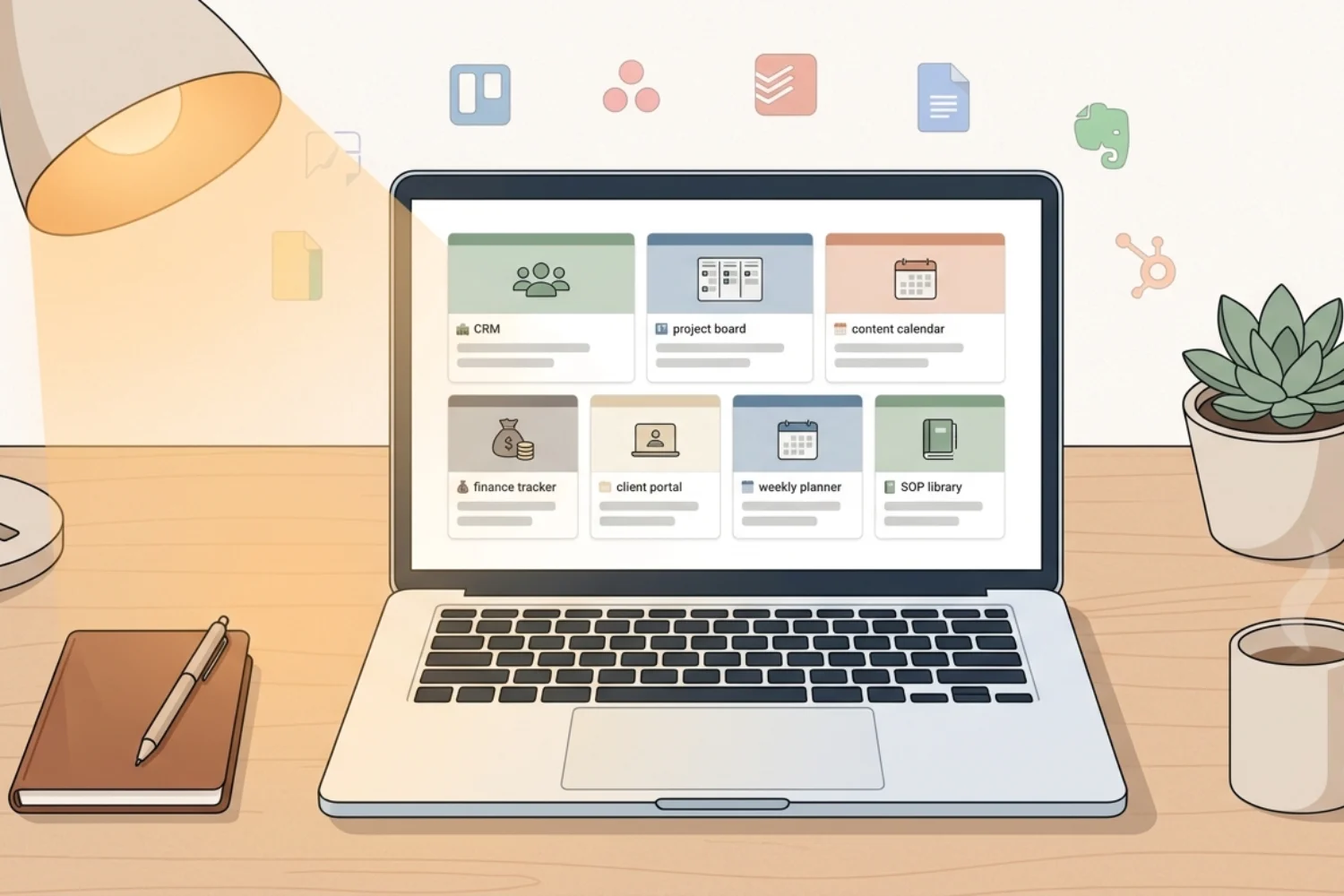
You pay for 10 tools. You use maybe 6 of them well. The rest sit there collecting invoices and gathering dust. Sound familiar?
If you have thought about ditching the chaos and moving everything into one place, this guide walks you through the full move. You will learn how to replace your tool stack with Notion step by step, tool by tool, function by function.
This is not a surface-level overview. This is the only Notion tool replacement guide you need to consolidate your scattered systems into a single workspace built around one connected database (or data source, as Notion now calls the underlying schema).
Why Replacing Your Tool Stack Matters
The average small business uses 12 to 18 SaaS tools. Each one has its own login, its own learning curve, its own monthly fee, and its own data silo. The result? You spend more time managing tools than doing the work those tools were supposed to help with.
Here is what fragmentation costs you:
- Money. $200 to $800 per month on overlapping subscriptions.
- Time. 4 to 6 hours per week switching between apps, syncing data by hand, and hunting for information.
- Focus. Every app switch costs you 23 minutes of deep focus. Add those up and you lose entire workdays.
- Growth. When your systems do not talk to each other, scaling means multiplying the mess.
If your business runs on scattered tools, you pay a tax on every task you complete. The question is not whether to consolidate business tools. The question is how.
What Notion Replaces (and What It Should Not)
Before you rip out tools, you need a clear picture of what Notion handles well and where it falls short. Honesty here saves you from a failed migration.
Where Notion Replaces Tools Well
| Business Function | Tools Notion Replaces | How Notion Handles It |
|---|---|---|
| Project Management | Asana, Trello, Monday | Databases with views, timelines, Kanban boards |
| Documentation | Google Docs, Confluence, Dropbox Paper | Pages with rich formatting, embeds, collaboration |
| Knowledge Base | Guru, Slite, Tettra | Wiki data sources with verified pages |
| Task Management | Todoist, TickTick, Things 3 | Linked databases with filters, templates, reminders |
| Notes and Research | Evernote, OneNote, Bear | Pages with web clipper, bookmarks, nested structure |
| CRM (Lightweight) | Spreadsheet CRMs, basic HubSpot | Relation databases with pipelines and contacts |
| Content Calendar | CoSchedule, spreadsheet calendars | Data source with calendar view and status tracking |
| SOPs and Processes | Process Street, SweetProcess | Template pages with step-by-step instructions |
| Meeting Notes | Fellow, Hugo | Meeting notes templates with action items |
| Client Portals | Shared folders, email chains | Shared Notion pages with controlled access |
What Notion Should NOT Replace
- Accounting software. QuickBooks, Xero, FreshBooks. Keep these.
- Email marketing platforms. Mailchimp, ConvertKit, ActiveCampaign. Notion does not send emails.
- Design tools. Figma, Canva, Photoshop. Notion is not a design tool.
- Communication tools. Slack, Zoom, Google Meet. Real-time chat and video need dedicated apps.
- Analytics platforms. Google Analytics, Mixpanel. Keep your data analysis tools.
The goal is not to force everything into Notion. The goal is to eliminate the tools Notion handles better and keep the ones it does not.
The 7-Step Framework to replace your tool stack with Notion
Here is the process to replace multiple apps with Notion without losing data, breaking workflows, or confusing your team.
Step 1: Audit Your Current Stack
Before you replace anything, list every tool you pay for. Open your bank statement or subscription tracker.
For each tool, document:
- What it does (primary function)
- How often you use it (daily, weekly, rarely)
- What data lives inside it (and whether you export it)
- Who on your team uses it
- Monthly cost
This audit alone will surprise you. Most business owners uncover 3 to 5 tools they forgot they were paying for.
For a full walkthrough of this process, read our guide on how to audit your tool stack.
Step 2: Categorize by Replaceability
Sort every tool into one of three buckets:
- Replace now. Notion handles this function better or equally well. Migration is straightforward.
- Replace later. Notion handles this, but migration needs planning. Move after core systems are stable.
- Keep. Notion should not replace this tool. Integrate instead.
Most businesses find 5 to 8 tools fall into the “replace now” bucket. That is your starting point.
Step 3: Design Your Notion Architecture
Do not start building random pages. Plan your workspace structure first. A proper Notion all-in-one setup follows this hierarchy:
Level 1: Workspace Home
Your dashboard. One page linking to everything. Think of it as your business command center.
Level 2: Function Hubs
One section per business function. Projects. Clients. Content. Operations. Finance.
Level 3: Databases (Data Sources)
The engine of your workspace. Each function gets its own database (Notion now calls the underlying schema a data source) with views tailored to different use cases.
Level 4: Templates
Repeatable pages for recurring work. Meeting notes. Client onboarding. Weekly reviews. SOPs. The Notion Starter Pack gives you a full architecture skeleton with all four levels wired in so you save the setup time.
For a full breakdown of workspace structure, see our guide on how to organize your business in Notion.
Step 4: Build Your Core Databases First
Start with the data sources you use every single day:
- Tasks database. Your central to-do system. Replaces Asana, Trello, or Todoist. The Task Manager Eisenhower matrix gives you a Kanban plus priority matrix out of the box.
- Projects database. Linked to tasks. Every project has a page with context, timeline, and related tasks.
- Notes database. Your capture system. Replaces Evernote or scattered Google Docs.
- Contacts/CRM database. If you manage clients, build this early. The CRM V.2 replaces spreadsheet CRMs with a pipeline board and interaction log.
- Content database. If you create content, this becomes your editorial calendar.
- Finance database. For income, expenses, and invoices, plug in Finance OS so your money lives next to the work generating it.
The key is to build data sources related to each other. A task belongs to a project. A project belongs to a client. A note links to a project. This connected structure is what makes Notion different from separate tools.
Step 5: Migrate Your Data
This is the step most people dread. It does not have to be painful.
For structured data (spreadsheets, databases):
- Export as CSV from the old tool
- Import directly into Notion data sources
- Clean up property types after import
For documents and notes:
- Export as Markdown or HTML from the old tool
- Import into Notion using the built-in importer
- Reorganize into your new structure
For project management data:
- Notion has direct importers for Trello, Asana, and Monday
- Use them. They save hours of manual work
Pro tip: Do not migrate everything. This is your chance to clean house. If you have not touched a document in 12 months, archive it. Only migrate what you use.
Step 6: Build Workflows and Automations
Once your data lives in Notion, connect the dots:
- Database templates for recurring tasks (weekly reviews, client onboarding, content briefs)
- Linked database views so the same data source appears in multiple contexts
- Formulas and rollups to automate calculations across data sources
- Notion automations to trigger status changes, notifications, and recurring tasks
- API integrations for tools you kept (connect Notion to Slack, email, calendar)
If your business runs on external triggers (webhooks, form submissions, third-party events), Workflow & Automation OS gives you a monitoring dashboard for n8n, Make, and Zapier flows inside the same workspace.
This is where the payoff of a single workspace shows up. When everything lives in one place, automations work because the data is already connected.
Step 7: Run Parallel for Two Weeks
Do not cancel your old tools on day one. Run both systems for 10 to 14 business days. This gives you time to:
- Catch anything you missed in migration
- Train your team on the new workflows
- Verify your Notion setup handles edge cases
- Build confidence nothing fell through the cracks
After two weeks, cancel the old subscriptions one by one. Start with the tools you use least.
Tool-by-Tool Replacement Playbook
Here is what replacing each tool category looks like inside Notion.
Replacing Trello / Asana / Monday (Project Management)
What to build:
- Projects database with status, timeline, priority, and owner properties
- Tasks database linked to Projects via relation
- Board view for Kanban workflow
- Timeline view for Gantt-style planning
- Calendar view for deadline tracking
Paired template: Task Manager Eisenhower matrix pairs urgency and importance with a full task pipeline.
Migration time: 2 to 4 hours
Difficulty: Easy
Replacing Google Docs / Confluence (Documentation)
What to build:
- Wiki data source for company knowledge
- Templates for common document types (SOPs, meeting notes, proposals)
- Nested page structure for organized documentation
Paired template: Notion Starter Pack ships with a documented wiki structure ready for your first 20 pages.
Migration time: 4 to 8 hours (depending on volume)
Difficulty: Easy
Replacing Todoist / TickTick (Task Management)
What to build:
- Tasks database with priority, due date, status, and category
- Filtered views: Today, This Week, By Project, By Priority
- Quick-capture template for inbox processing
Paired template: Task Manager Eisenhower matrix covers daily capture through weekly review.
Migration time: 1 to 2 hours
Difficulty: Easy
Replacing Evernote / OneNote (Notes)
What to build:
- Notes database with tags, date, and source properties
- Web clipper for capturing content
- Templates for meeting notes, research, and brainstorms
Paired template: Notion Starter Pack includes a pre-built notes hub with tag conventions.
Migration time: 2 to 6 hours
Difficulty: Easy to Medium
Replacing Spreadsheet CRMs (Client Management)
What to build:
- Contacts database with company, role, status, and deal value
- Pipeline view (Board) for deal stages
- Linked interactions database for call notes and emails
- Client portal pages for shared access
Paired template: CRM V.2 handles the pipeline, contact profiles, and interaction log in one linked structure.
Migration time: 3 to 5 hours
Difficulty: Medium
Replacing CoSchedule / Content Calendars
What to build:
- Content Hub database with platform, format, status, and publish date
- Calendar view for editorial planning
- Templates for each content type (blog post, social media, newsletter)
- Linked keywords database for SEO tracking
Migration time: 2 to 4 hours
Difficulty: Medium
Replacing Personal Planning Apps (Life Admin)
What to build:
- Habits, goals, and personal projects in one linked structure
- Weekly and monthly review templates
- Reading list, wishlist, and journal data sources
Paired template: Life Planner covers the personal side of your workspace so you do not need a second app for it.
Migration time: 1 to 2 hours
Difficulty: Easy
Want more pre-built solutions? Check out our roundup of the best Notion templates for solopreneurs.
Notion vs. Scattered Tools: The Real Comparison
When you switch to Notion from multiple tools, you are not simply saving money. You change how your business operates.
| Factor | Scattered Tools | Notion Workspace |
|---|---|---|
| Monthly Cost | $200 to $800 | $8 to $15 per user |
| Context Switches | 10 to 15 per hour | 0 to 2 per hour |
| Data Silos | One per tool | Zero (everything connected) |
| Onboarding New Hires | Learn 10+ tools | Learn 1 workspace |
| Finding Information | Search each tool separately | One search, all results |
| Customization | Limited per tool | Unlimited (build what you need) |
| Workflow Automation | Requires Zapier to connect tools | Built-in relations and automations |
For a deeper dive, read our full breakdown of Notion vs. scattered tools.
Common Migration Mistakes (and How to Avoid Them)
After helping businesses migrate to Notion workspace setups, these are the patterns causing the most problems.
Mistake 1: Recreating Your Old Tools Exactly
Do not build a Trello clone inside Notion. Notion works differently. Use databases, relations, and views to create something better than what you had.
Mistake 2: Migrating Everything at Once
Pick one function. Replace it. Stabilize it. Then move to the next. Trying to migrate everything at the same time creates chaos.
Mistake 3: Skipping the Architecture Phase
Jumping straight into building without planning your workspace structure leads to a messy Notion workspace. It defeats the entire purpose.
Mistake 4: Ignoring Templates
Templates are what make Notion scalable. Without them, every recurring task needs manual setup. Build templates for anything you do more than twice.
Mistake 5: Not Training Your Team
If your team does not understand the new system, they will quietly go back to the old tools. Spend time on training. Create a “How We Use Notion” guide inside your workspace.
The Migration Timeline: What to Expect
Here is a realistic timeline for a solo business owner or small team to consolidate business tools into Notion from a scattered stack.
| Week | Focus | What Gets Done |
|---|---|---|
| Week 1 | Audit and Plan | Tool audit, architecture design, workspace skeleton |
| Week 2 | Core Build | Tasks, Projects, and Notes databases |
| Week 3 | Data Migration | Import data from replaced tools, clean up |
| Week 4 | Advanced Build | CRM, content calendar, client portals |
| Week 5 | Workflows | Templates, automations, linked views |
| Week 6 | Parallel Run | Use both systems, catch edge cases |
| Week 7 | Cutover | Cancel old subscriptions, full Notion usage |
| Week 8 | Optimize | Refine views, add missing templates, iterate |
Total time investment: 20 to 40 hours spread across 8 weeks. The ROI kicks in month two when tool costs drop and productivity climbs.
Your Notion All-in-One Setup: What the Final Workspace Looks Like
After completing this process, your Notion all-in-one setup should include:
Dashboard (Home Page)
- Quick links to every function
- Today’s tasks (linked database, filtered view)
- Active projects overview
- Recent notes
- Key metrics rollups
Projects Hub
- All projects database with Board, Timeline, and Table views
- Project templates for different types (client work, internal, content)
- Linked tasks for each project
Tasks System
- Central tasks data source
- Views: My Tasks Today, This Week, By Project, Inbox
- Recurring task templates
Knowledge Base
- Wiki for SOPs, processes, and documentation
- Searchable, tagged, and verified pages
- Templates for common document types
Client Hub (if applicable)
- CRM database with pipeline views
- Client portal pages
- Interaction log linked to contacts
Content System (if applicable)
- Editorial calendar with platform and format tracking
- Content templates for each format
- Keywords and SEO tracking data source
Finance Layer
- Income, expenses, and invoice tracking
- Monthly and quarterly rollups
- Tax-ready exports
For more on building this type of workspace from scratch, read our guide on using Notion for small business.
What Happens After You Consolidate
Businesses that replace their tool stack with Notion report consistent results:
- 40 to 60% reduction in monthly software costs
- 5 to 8 hours saved per week on tool switching and manual syncing
- Faster onboarding. New team members learn one system instead of ten
- Better decisions. When all data lives in one place, you see patterns you missed before
- Less stress. One workspace means one place to check. Nothing falls through the cracks between apps
The biggest shift is psychological. When you stop worrying about which tool has the information you need, you free up mental energy for the work that matters most.
Frequently Asked Questions
Is Notion reliable enough to replace paid tools?
Notion has 99.9% uptime and serves millions of users including enterprise companies. For small business needs, it is more than reliable. Offline mode keeps you working without internet. Your data is backed up and exportable at any time.
How long does it take to fully switch to Notion from multiple tools?
Most solo business owners complete the migration in 4 to 8 weeks while running their business normally. Active time is 20 to 40 hours total. You do not need to pause operations to make the switch.
Will I lose data during migration?
Not if you follow the parallel-run approach. Keep your old tools active for two weeks after migration. Export everything before canceling subscriptions. Notion supports CSV, Markdown, and HTML imports from most tools.
Does Notion handle team collaboration as well as dedicated tools?
For teams under 50 people, yes. Real-time editing, comments, mentions, and permissions cover most collaboration needs. Larger teams sometimes pair Notion with Slack for real-time communication.
What if Notion does not have a feature I need?
Check the Notion API and integration ecosystem first. Many gaps get filled with simple automations or third-party connectors. If a function truly needs a dedicated tool, keep it and use Notion as your central hub linking to it.
Is this Notion tool replacement guide relevant for teams or solopreneurs?
Both. The framework scales from solo operators to teams of 20+. The main difference is teams need more templates, clearer permissions, and a documented “How We Use Notion” guide for onboarding.
How much money will I save by consolidating into Notion?
The average solo business owner saves $150 to $500 per month after replacing 5 to 8 tools. A small team of 5 saves $500 to $2,000 per month. The time savings often matter more than the dollar savings.
Key Takeaways
- The average business wastes $200 to $800 per month and 4 to 6 hours per week on scattered tools
- You replace your tool stack with Notion for project management, docs, tasks, notes, CRM, and content planning
- Keep accounting, email marketing, design, communication, and analytics in dedicated tools
- Follow the 7-step framework: Audit, Categorize, Design, Build, Migrate, Automate, Parallel Run
- A complete Notion all-in-one setup takes 4 to 8 weeks and 20 to 40 hours of active work
- Run both systems in parallel for two weeks before canceling old subscriptions
- The ROI is both financial (lower costs) and operational (single workspace productivity, less context switching)