

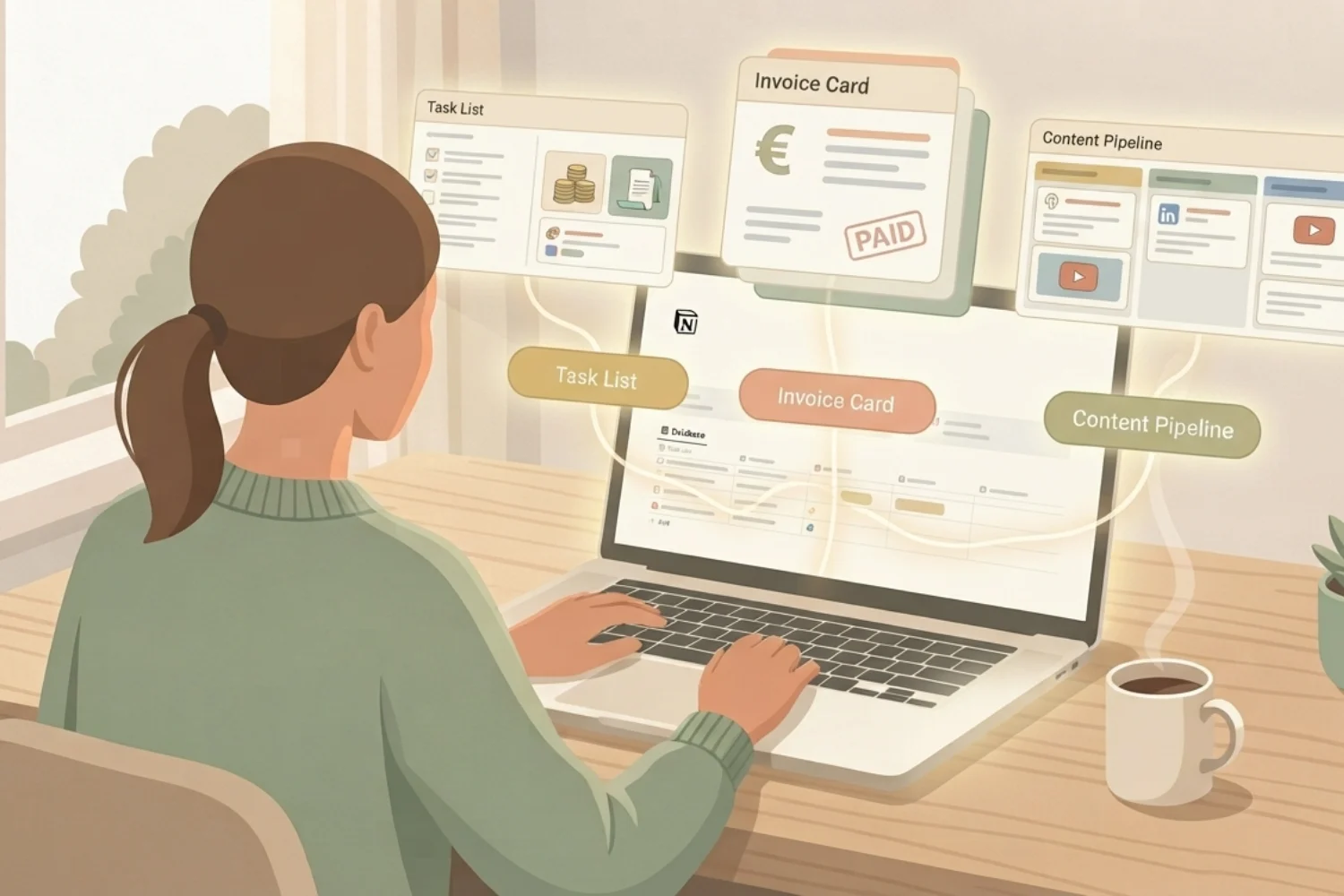
Notion buttons automation turns the 30 repetitive clicks a solopreneur runs every morning into a single click. Task rollover, invoice draft, weekly review reset, repurpose fan-out, client onboarding kits all of it becomes one button that fires the exact sequence of database writes, page creates, and property updates you would have done by hand. This guide gives you 12 working Notion buttons automation recipes, the 3 setup approaches sized to your workflow, and the exact templates that skip the schema-design step.
Most solopreneurs use Notion as a static wiki and never touch buttons. That is the whole problem. Every task rollover, every invoice, every content brief becomes a manual page-create + property-fill dance that eats 45 minutes a day. A working Notion buttons automation setup collapses those 45 minutes into 5 clicks and gives you back the compounding time you thought you needed a bigger tool stack to reclaim.
By the end of this guide you have 12 recipes, 3 setup approaches, one handoff point where a custom AI agent takes over, and 6 Published templates that ship the wiring pre-built.
Table of Contents
What You’ll Learn
Why Solopreneurs Sleep on Notion Buttons
Three reasons most solopreneurs never touch Notion buttons automation:
- Old buttons were bad. Before the 2023 rewrite, buttons only inserted content blocks. Nobody built workflows on them, so the muscle memory never formed.
- Documentation reads like a feature list, not a recipe book. Solopreneurs need “do this thing every morning” examples, not “button actions include Add page, Edit pages, Send webhook.”
- Database automations feel like enterprise territory. In practice they are the single highest-leverage feature in Notion for anyone running a business alone.
Every recipe below is field-tested by solo operators. Each one saves 3-20 minutes per invocation. Stack 8 of them and you carry 90 minutes back into your day.
Button Basics: Page Buttons vs Database Buttons
Before the recipes, the two flavors of button:
Page buttons live inline on a page. Type /button, name it, add one or more actions (Insert blocks, Add page to database, Edit pages, Open page, Show confirmation, Send webhook). Great for dashboards and morning kickoff pages.
Database buttons live as a property on a database row. Every row gets its own button. Great for per-record actions: advance a deal stage, generate an invoice for one client, kick off an onboarding kit for one project.
Database automations are the third layer. Not buttons. They fire on property changes. When Status flips to Done, when a new row is created, when a date arrives automations run without a click. Buttons manually trigger workflows. Automations run them for you when a condition hits.
Best Notion buttons automation setups combine all three: page buttons on morning dashboards, database buttons on operator rows, database automations for status-driven side effects.
12 Solopreneur Notion Buttons Automation Recipes
Grouped by workspace zone. Every recipe below is one button or one database automation you build today.
Task Operations (4 recipes)
1. Daily Task Rollover
Page button on your Today dashboard. Actions: Edit pages in Tasks database where Due Date = yesterday and Status ≠ Done → set Due Date = today. One click clears the guilt pile from yesterday and pulls incomplete work forward.
2. Quick Capture From Anywhere
Synced page button pinned to your sidebar. Action: Add page to Tasks database with defaults (Priority = Medium, Status = To do, Project = current project). Solves the friction of full-form task entry. Capture in 1 second, refine later.
3. Weekly Review Reset
Page button on your Weekly Review page. Actions in sequence: 1) Edit pages in Tasks where Status = Done and Completed Date < 7 days ago → set Archived = true. 2) Edit pages in Tasks where Week = This Week and Status ≠ Done → set Week = Next Week. 3) Insert blocks: a Sunday planning prompt. Runs your weekly reset in 4 seconds flat.
4. Habit Check-in With Streak
Database button on Habits database. Actions: 1) Add page to Habit Log with today’s date and habit relation. 2) Edit this row → increment Streak by 1. Each habit row shows its own button in table view. Marks a habit done from the daily dashboard in one click.
Business Operations (4 recipes)
5. Invoice Draft From Client Row
Database button on the CRM Clients database. Actions: Add page to Invoices database with Client = this row, Amount = client Default Rate, Status = Draft, Due Date = today + 14 days, Invoice Number = auto-increment. Draft invoice in 1 second per client. Human reviews, sends, archives.
6. Meeting Notes From Contact
Database button on CRM Clients. Actions: Add page to Meeting Notes with Contact = this row, Date = today, Template = 1:1 agenda blocks (Insert blocks section pre-fills Agenda, Discussion, Action Items). Removes the 3-minute setup dance before every client call.
7. Deal Stage Advancer
Database button on CRM Deals. Actions: Edit this row → set Stage to next value in the pipeline (Lead → Qualified → Proposal → Signed → Won), set Last Stage Change to today. Kanban CRM without dragging cards. One click per deal per stage change.
8. Client Onboarding Kit
Database button on CRM Clients labeled “Start Onboarding.” Actions in sequence: Add page to Projects (linked to this client), Add page to Documents for Welcome Doc, Add page to Documents for Contract, Add page to Invoices for deposit, Add page to Meeting Notes for kickoff call. Five pages in one click, all linked back to the client row. Replaces a 12-minute manual setup.
Content Operations (4 recipes)
9. Content Idea to Full Brief
Database button on Content Ideas. Actions: Edit this row → set Status = Brief In Progress, add page to Content Details (linked back to this idea), Insert blocks in the new brief: SEO section, Outline section, CTA section, Repurpose plan section. Converts a raw idea into a working brief in 2 seconds.
10. Publish Checklist Generator
Page button on a content brief page. Action: Insert blocks → 8 to-do items (proofread, SEO title check, meta description check, image ALT check, internal links, external links, schema markup, social share draft). Adds the same pre-publish checklist to every article without a template dance.
11. Repurpose Fan-Out
Database button on published Content rows. Actions: Add 3 rows to Social Posts database (one Twitter/X thread, one LinkedIn post, one Newsletter blurb), each linked back to the source article with Status = Draft. Fans one long-form piece into three social drafts in 1 click.
12. Newsletter Send Prep
Database button on Newsletter Issues. Actions: Edit this row → set Status = Pre-flight, Send Date = next Tuesday, Subject Line Options = pre-filled with 3 formula-generated variants. Insert blocks in the issue page: preview text block, footer block, unsubscribe reminder. Removes 8 minutes of setup from every newsletter send.
The 3 Setup Approaches for Notion Buttons Automation
Not every solopreneur needs all 12 recipes on day one. Pick the approach that matches your current friction.
Approach 1: Manual Buttons Only (Free Plan Friendly)
Start with recipes 1-4 (Task Ops) plus recipe 8 (Onboarding Kit). Everything runs on click. No database automations required, so this works on the Free plan. Setup time: 30 minutes. Time saved per week: 3-4 hours.
Approach 2: Buttons Plus Database Automations
Add Status-driven automations to layer 1. Example: when a Task Status flips to Done, an automation timestamps Completed Date and clears the Reminder property. When a Deal Stage hits Signed, an automation fires the onboarding kit button. Requires Plus plan for full automation actions. Setup time: 90 minutes. Time saved per week: 6-8 hours.
Approach 3: Full Stack with Custom AI Agent Handoff
Add a custom Notion AI agent for anything that needs judgment (drafting the actual invoice PDF text, writing repurpose copy, summarizing the week). Buttons handle deterministic writes, agents handle reasoning. Requires the 300 free monthly credits or a small credit pack. Setup time: 3 hours. Time saved per week: 10-12 hours.
Custom Agent Handoff: When Buttons Are Not Enough
Buttons and database automations are deterministic. They copy fields, create pages, flip statuses. They do not write copy, summarize meetings, or reason about priority. The moment your recipe needs judgment, hand off to a custom Notion AI agent.
Example pattern: The Invoice Draft button (recipe 5) creates a Draft invoice row. A recurrence-triggered agent runs every morning at 8am, reads all Draft invoices from the last 24 hours, and drafts a personalized email body for each one referencing the client’s last project and payment terms. Button handles the structured data. Agent handles the writing.
Second example: The Repurpose Fan-Out button (recipe 11) creates 3 empty social rows. An agent triggered on “new row in Social Posts where Status = Draft” reads the source article and drafts platform-specific copy into each row. Button handles the row-creation math. Agent handles the platform-aware copy.
Cost pattern: buttons are free forever. Agent-assisted recipes run 4-8 credits per invocation. 20 recipe runs per week costs roughly 80-160 credits monthly, well inside the 300 free credits every workspace gets after May 2026 GA.
Skip the 3-Hour Setup With These Templates
Building all 12 recipes plus the underlying databases from scratch takes 3-4 hours. These six Published templates ship the wiring pre-built. Pick based on which of the three approaches above matches your setup today.
Start here if you have zero systems yet:
- Notion Starter Pack: Drops in the Tasks, CRM, Projects, and Command Center scaffolding this workflow needs. Every button recipe above assumes these databases already exist. Everything else on this list sits on top of it.
For Approach 1 (Manual Buttons, Free Plan):
- Task Manager Eisenhower matrix : Ships with recipes 1, 2, and 3 pre-built on an Eisenhower priority matrix. Daily Rollover, Quick Capture, and Weekly Review Reset all wired to the correct Tasks database with the right property edits.
- Daily Flow: A ready daily dashboard that hosts the morning-kickoff buttons. Drop your Tasks database into it, wire recipes 1-4, and your daily operator page is done.
For Approach 2 (Buttons + Database Automations):
- Workflow & Automation OS: The full automation layer. Ships with Status-driven automations for Tasks, Deals, Content, and Invoices already configured. Recipes 5, 7, and 9 arrive pre-wired. Add your specific client rows and the pipeline runs itself.
For Approach 3 (Full Stack with Business Ops):
- CRM V.2: The CRM engine recipes 5, 6, 7, and 8 need. Clients, Deals, Contacts, and Pipeline stages ship connected. Drop the Invoice Draft and Client Onboarding Kit buttons on the Clients database and the operator side of the business is done.
- Finance OS: The financial layer recipe 5 feeds. Invoices, Expenses, and monthly PnL rollups arrive pre-connected to the CRM. Every Draft invoice the button generates lands here for review, send, and paid tracking.
FAQ
Do Notion buttons cost money to use?
No. Buttons themselves are on every plan including Free. A few advanced button actions (Send webhook, some database edits) unlock on Plus. Every recipe in this guide runs on Free except recipes 5, 7, and 11 which benefit from Plus-tier automations for the property-change side effects.
Do database automations replace buttons?
No, they complement. Buttons are user-initiated (click to run). Automations are event-initiated (fire on property change or new row). Best setups use both: a button starts a workflow, an automation completes the side effects.
Can one button do multiple things?
Yes. Every button holds an unlimited action list. Recipe 8 (Client Onboarding Kit) chains 5 page-create actions in one button. Order matters actions run top to bottom.
What is the difference between a button and a Notion AI agent?
Buttons are deterministic and free. They do the same thing every click. Agents cost credits and reason they read context, decide what to do, and write. Use buttons for structure (create rows, flip statuses, copy fields). Use agents for judgment (write copy, summarize, prioritize).
How do I share a button with a team or client?
Buttons live inline. Share the page containing the button with edit access and the person clicks it in their view. For a button that must run under your permissions (like editing a private database), the button runs as the last editor which is you.
Turn 45 Minutes of Clicks Into 45 Seconds This Week
Every solopreneur running Notion is one afternoon away from reclaiming 4-6 hours per week. The gap between a static wiki and a working operator OS is 12 buttons and 4 automations. This is not a productivity fantasy. It is a schema decision which properties, which relations, which button on which row.
Pick two recipes from the Task Ops section and build them tonight. Add two Business Ops recipes on the weekend. By Monday you have four working button flows and a baseline for the rest. Notion buttons automation stops being a Notion feature you read about and starts being the thing you click 30 times a day.