

Your accountant emails for the quarter’s numbers. You open a spreadsheet, two bank tabs, and your invoicing app, and you still have no clean answer to one question: after VAT, how much did the business keep this month? Running a small business should not feel like assembling a financial jigsaw from five disconnected tools. This guide walks through how to build a Notion Finance OS for Small Business keeping income, expenses, invoices, VAT, cash flow, and clients in one place.
Solopreneurs, freelancers, and small business owners share one recurring pain. The money side of the business lives in five tools none of which talk to each other. Stripe shows revenue but not VAT owed. The bank app shows balance but not which invoice fed it. The spreadsheet shows budgets but goes stale by the third week of the month. A connected workspace fixes the trust gap between the numbers and the decisions you make on them.
What you read here is the same architecture used inside the Finance OS template, built around lead-to-invoice-to-cash logic. The six pillars hold whether you are billing your first client or running a five-person studio. The 7-step setup mirrors the in-template Quick Start, so if you own the template, this guide doubles as a faster onboarding.
Each section maps to a real page inside the template. Screenshots point to specific dashboards and views so you have a Ctrl+F path for every visual. By the end of the article, the same money workflow used by small businesses tired of five-tab accounting lives on your desk.
Who This Guide Is For
This guide is built for four kinds of operators who all share the same pain: business money scattered across too many tools.
- Solo freelancers and consultants billing 1 to 10 clients a month who lose hours chasing invoices and reconciling Stripe to the bank.
- Solopreneurs running digital products with 3 to 8 income sources (Gumroad, Stripe, affiliate networks) and an equal number of expense categories.
- Small business owners (1 to 5 people) running service or agency work where revenue, VAT, and payroll arrive at different times.
- Side-business owners earning second-stream income alongside a day job who want one workspace for the whole money picture without becoming bookkeepers.
If any of those sound like you, the rest of this guide maps directly to the work you do.
When to Use This Template
A Notion finance OS earns its place when these signals show up.
- Your finance data lives in four or more tools and you rebuild the same monthly view from scratch every reporting cycle.
- You owe VAT or sales tax and want to see what you collected vs paid throughout the month, not on the deadline.
- You bill clients directly and need a lead-to-invoice-to-paid pipeline rather than emails and a folder of PDFs.
- You pay 5 or more subscriptions (AI tools, hosting, SaaS) and have already been surprised by a renewal you forgot.
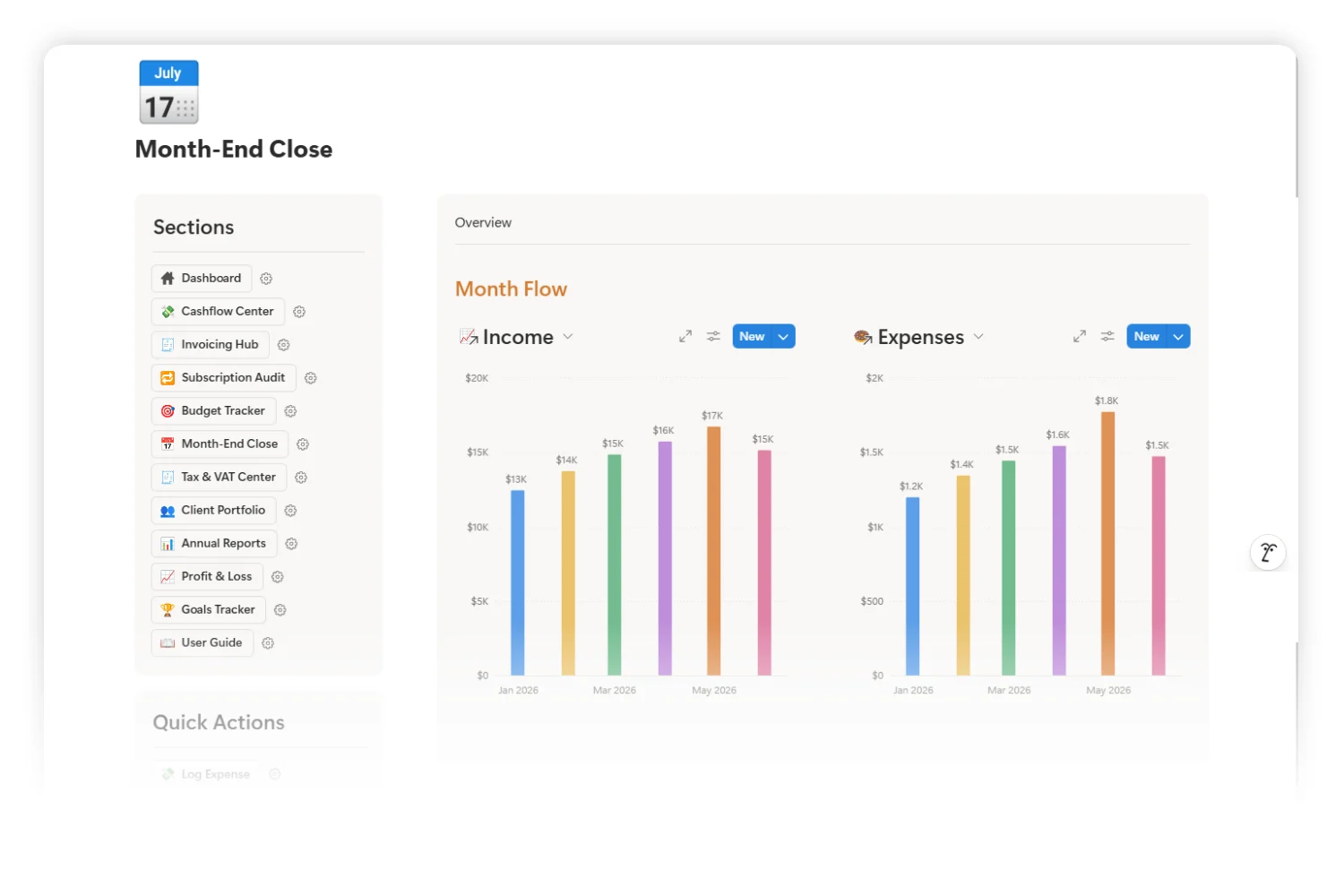
- You want to close the month in an evening, not lose a Saturday digging through bank exports.
Skip this template if you are a hobbyist with no clients, no VAT, no recurring expenses, and no plan to grow. A plain notes app handles the load.
What a Notion Finance OS Actually Means
A finance OS is one workspace where every money record (income, expenses, invoices, subscriptions, VAT, budgets, and clients) lives in connected databases instead of separate apps. It is an income and expense tracker Notion workflow extended with VAT, subscriptions, invoices, and clients on top.
The “OS” word matters. Spreadsheets store rows. A Notion finance OS stores rows AND knows how those rows relate to each other. When you log an invoice, the system already knows the client, the project, the VAT rate, and which income category the money belongs to. When the invoice gets paid, the dashboard updates the cash position, the VAT collected pool, and the income-by-month chart in one move. No copy-paste. No reconciliation tab.
This sits below your compliance accountant. QuickBooks and Xero exist for filings and audits. The OS exists for the daily and weekly money calls only you make: do I take this client, do I pay this subscription, am I on track this month?
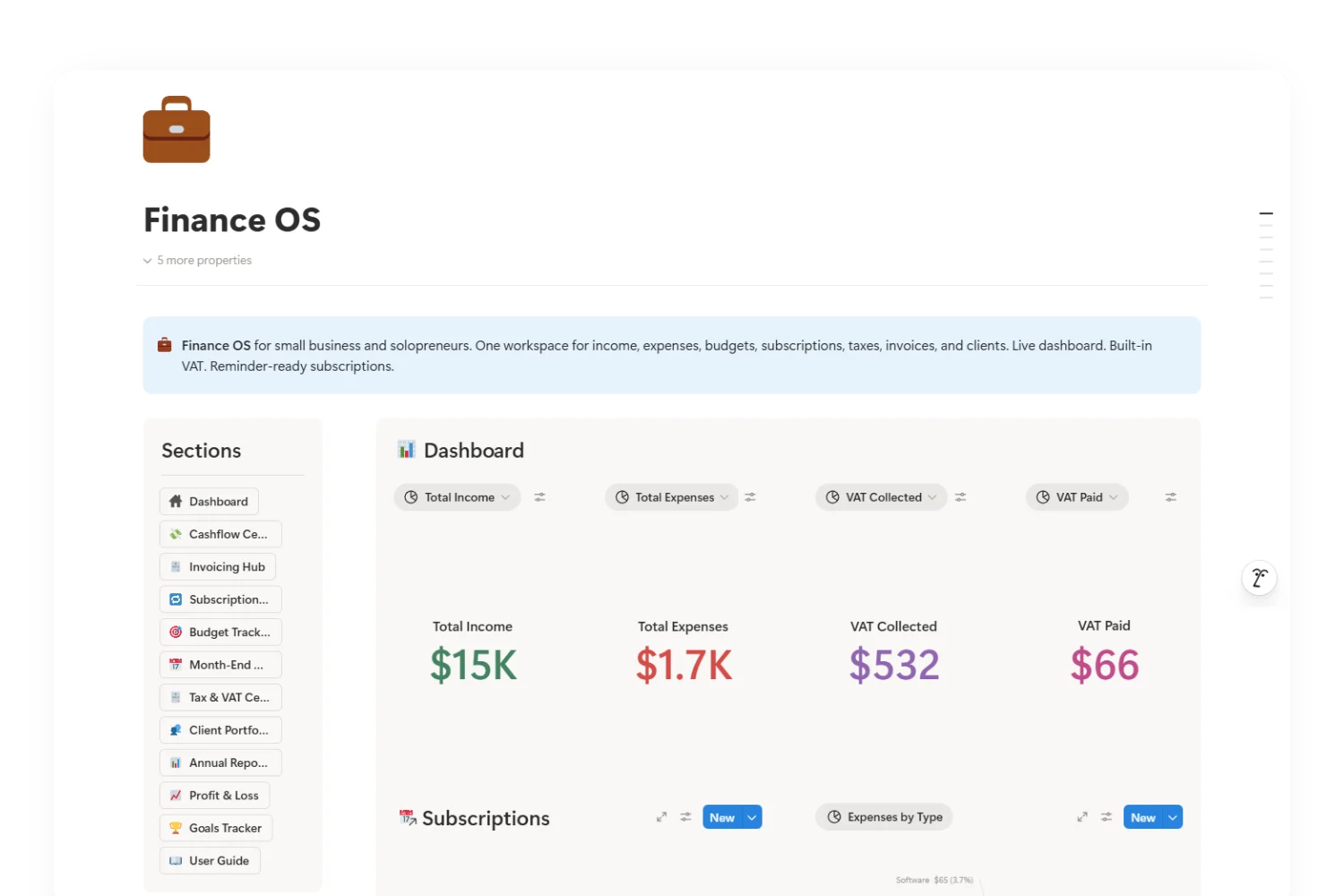
The 6 Pillars of a Notion Finance OS
Every Notion finance OS rests on six pillars. Miss one and you lose the property of being a true OS.
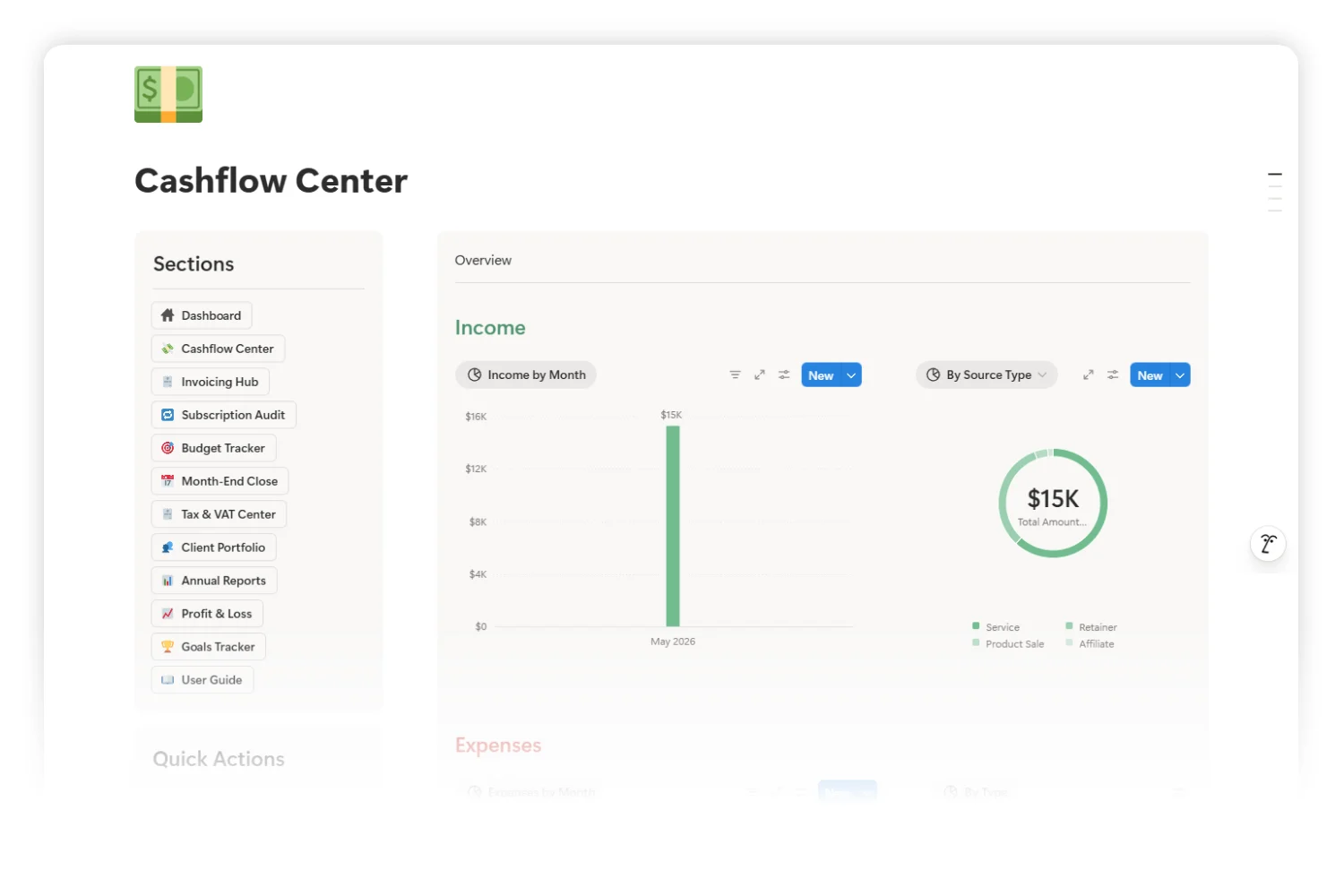
1. Cashflow
The single live answer to “how much do I have, where does it come from, where does it go?” Income and expenses flow in as you log them. Charts roll up by month, by category, by account.
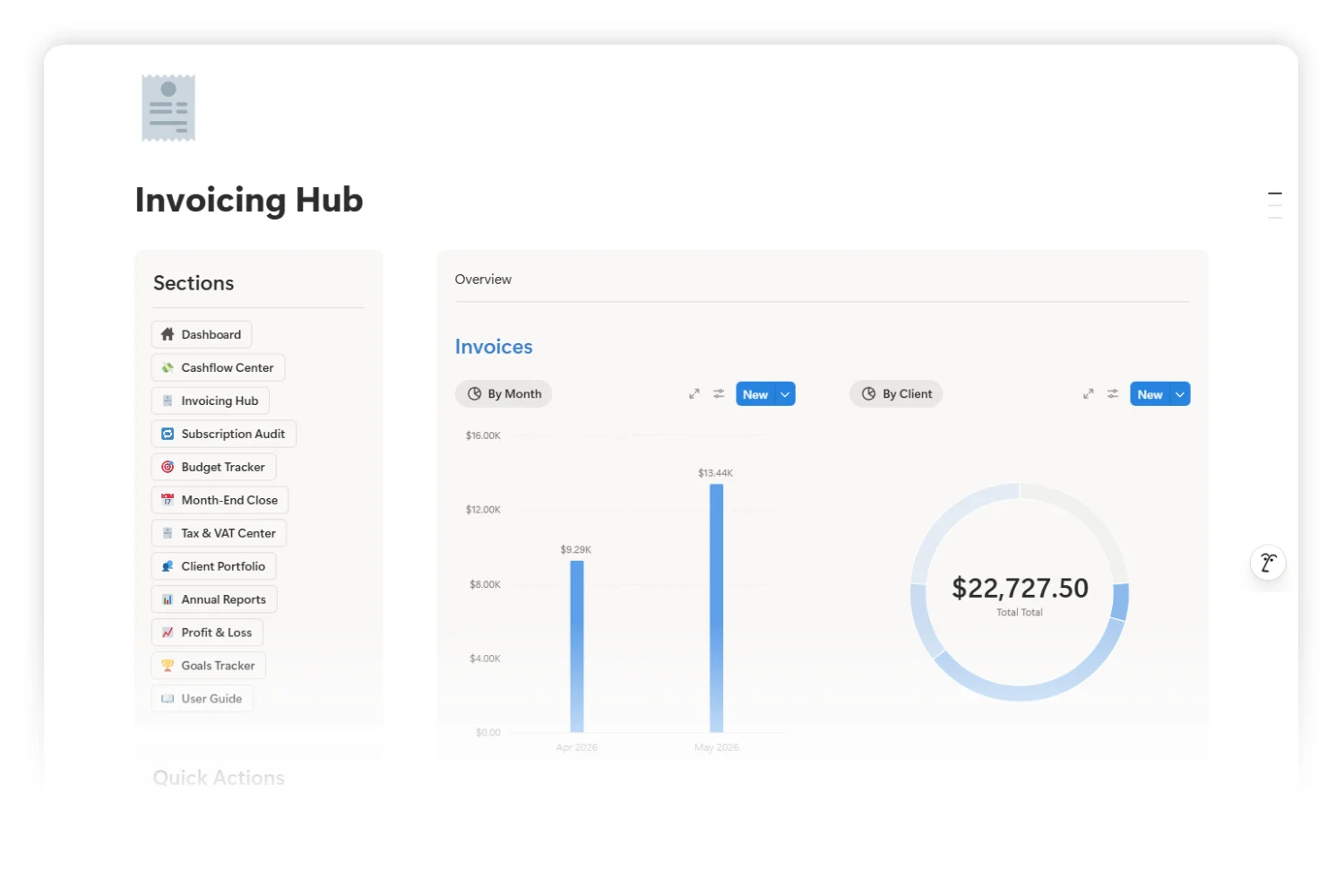
2. Invoicing
A full lead-to-paid pipeline. Each invoice carries its client, project, VAT rate, and status (Draft, Sent, Paid, Overdue). The dashboard surfaces open invoices and outstanding amounts so chasing payments stops being a memory game.
3. Tax & VAT
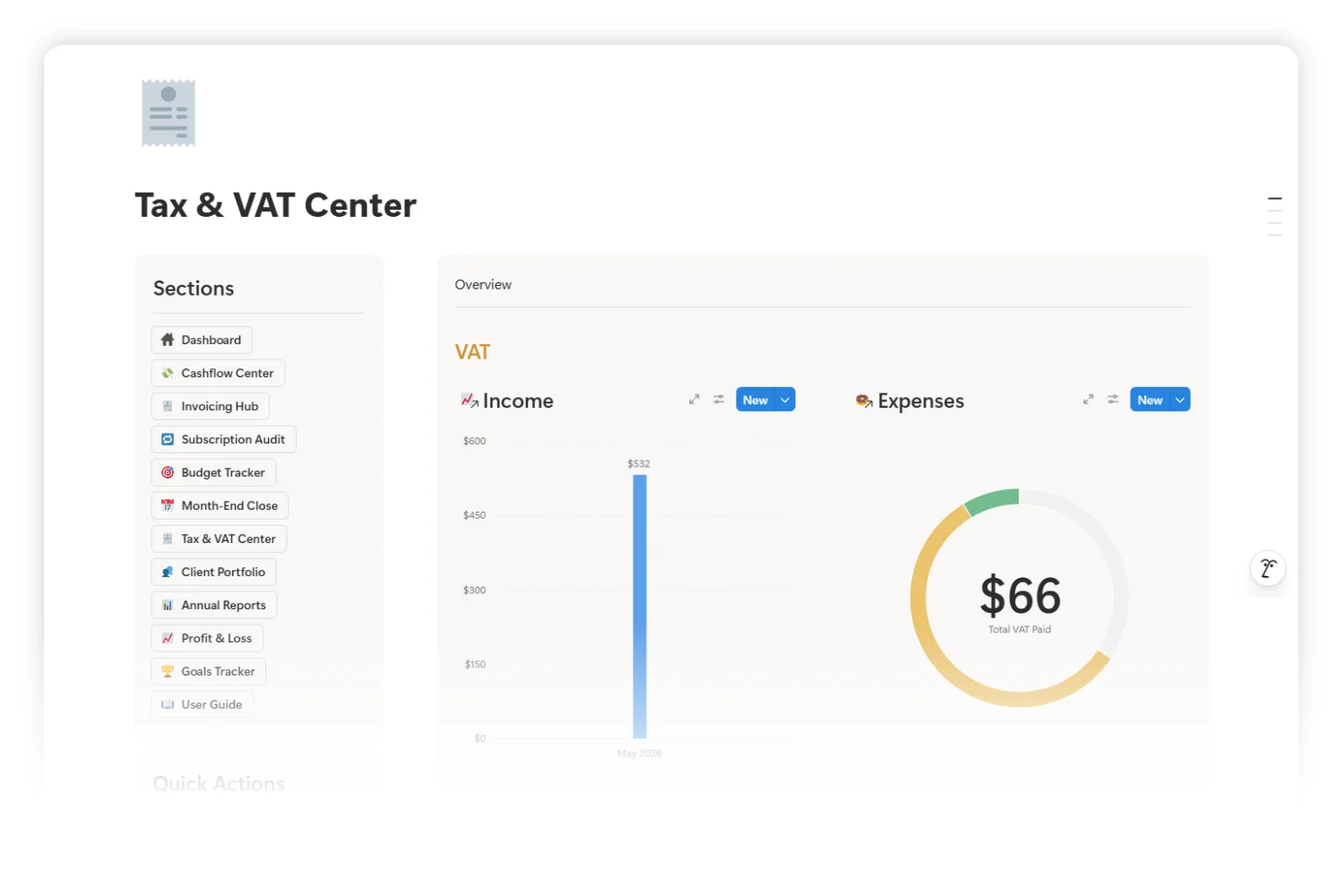
A live VAT ledger split between what you collected (output VAT on invoices) and what you paid (input VAT on expenses). The difference is what you owe. Seeing the running total every week stops the quarter-end panic.
4. Subscriptions
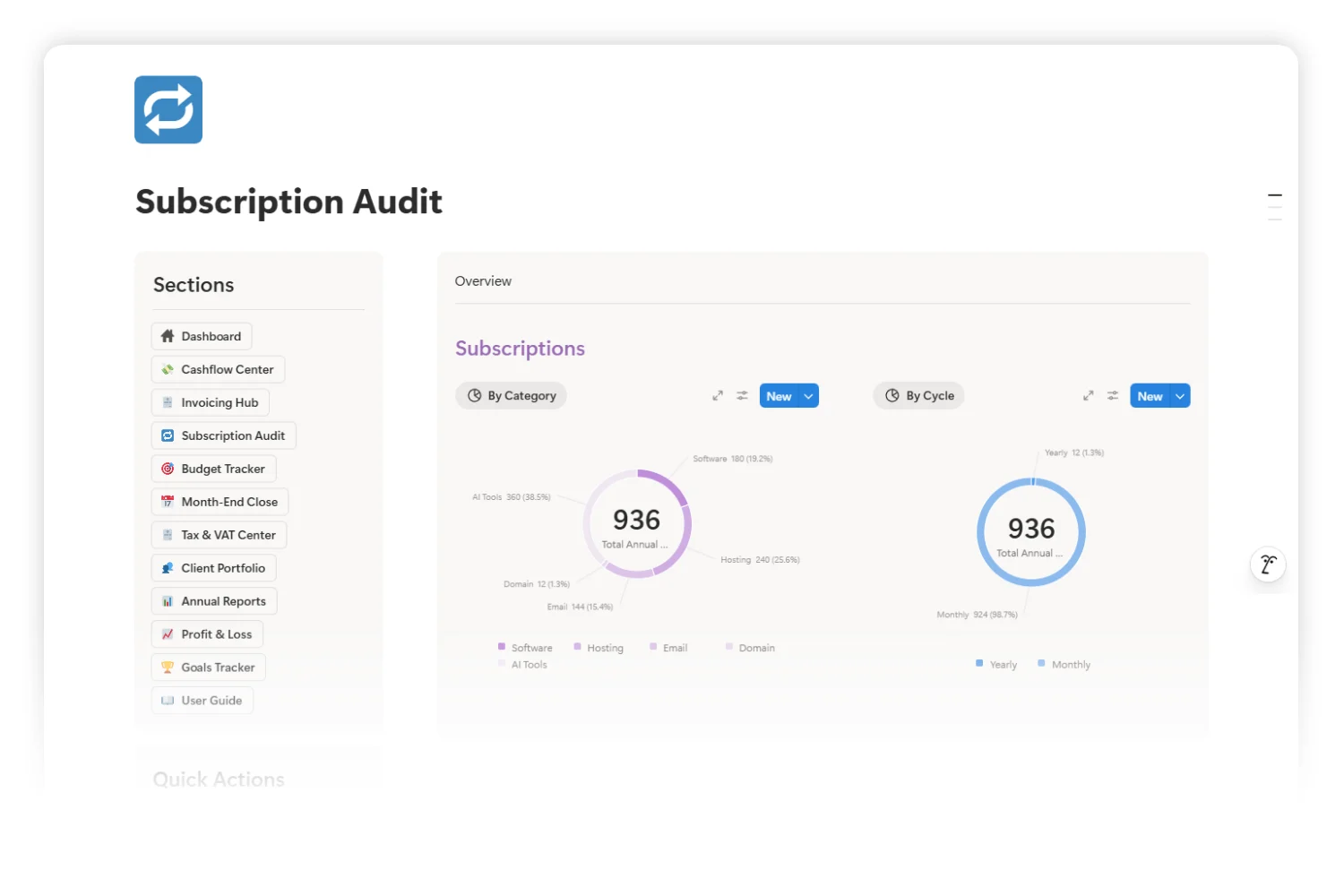
Every recurring tool (AI subscriptions, hosting, domains, SaaS) gets logged with cycle, next renewal date, and category. Upcoming Renewals view gives you 14 to 30 days of warning before a charge hits.
5. Budgets
Monthly targets per category. Compare actual vs target so overspend is visible by week two, not at month end when the money is gone.
6. Clients
Each client has a portfolio: total billed, total paid, outstanding, and the next planned project. This pillar is what turns a finance tracker into a real small business finance template.
How to Set Up Your Finance OS in 7 Steps
The Finance OS template ships with a “How to use this template” toggle. The 7 steps below mirror it. Do them in order on a single sitting.
- Set up Accounts. Add your bank, Stripe, PayPal, Wise, and any wallet you collect or pay from. Each account becomes a record other databases connect to.
- Review Categories. Open the income and expense category list. Rename what does not match your business. Delete categories you will never use. Five clean categories beat fifteen vague ones.
- Set Monthly Budgets. For the current month, set a target per expense category. Be realistic, not aspirational. Budgets you ignore are budgets you do not have.
- Log Subscriptions. Every recurring tool, with renewal date and cycle (monthly or annual). Use the Subscription Audit page to spot duplicates and forgotten trials.
- Onboard Clients and Invoices. Add active clients. For each, create the open invoices with VAT rate, due date, and project link. Now your pipeline has a starting line.
- Log Income and Expenses. From this point forward, every payment in or out gets a row. Use Quick Actions to keep the entry under 30 seconds.
- Run the Dashboard. Check the dashboard weekly. Run the Month-End Close routine at month end. The numbers update themselves; your job is the 15-minute read.
Business Plan vs Pro Plan: Which Version You’ll Use
Finance OS ships in two flavors. Same data model, same databases, same six pillars. The dashboard rendering differs because of how Notion’s chart features split across plans.
- Notion Business Plan uses the built-in Dashboard database view to render one combined widget. Best for teams already on Business or Enterprise.
- Notion Pro Plan uses live chart blocks placed side by side. Same insights, different layout. Best for solopreneurs and small teams on the Pro plan.
Both copies ship in the purchase. You own them both, use the one for your plan, and keep the other as a backup. If you upgrade plans later, you swap copies without rebuilding data.
Frequently Asked Questions
Is a Notion finance OS a replacement for QuickBooks or Xero?
No. Compliance accounting (filings, audits, statutory reports) stays in QuickBooks or Xero. The OS replaces the daily and weekly money calls layer: cash position, open invoices, VAT outlook, subscription audit. Most small business owners need both, with the OS as the operator surface and the accountant tool as the filing surface.
Will the template work without coding or formulas knowledge?
Yes. All databases, properties, formulas, and rollups ship pre-built. You add rows and read the dashboard. The only setup work is renaming categories and adding your accounts.
How long does the initial setup take?
A focused first session of 60 to 90 minutes covers accounts, categories, budgets, and the first batch of clients and subscriptions. Logging the first month of income and expenses runs alongside normal work for the next two weeks.
Does it handle multi-currency?
The template tracks currency per record. Conversion to your reporting currency is a manual update on each entry. For heavy multi-currency work, pair it with Wise or a dedicated FX tool and log the converted amount.
What about freelance tax categories specific to my country?
The Tax & VAT Center holds categories you define. The default ships with a generic VAT rate field and deductible tax categories (including the meals-50% rule). Localize the category names and rates to your country in step 2 of the setup.
Tools Referenced in This Guide
| Tool | What it does | Link |
|---|---|---|
| Stripe | Card payments and online invoicing source | stripe.com |
| PayPal | International payment account, common for freelancers | paypal.com |
| Wise | Multi-currency business account and FX | wise.com |
| QuickBooks | Compliance accounting and statutory filings | quickbooks.intuit.com |
| Xero | Compliance accounting for small business | xero.com |
| Notion | The workspace where your finance OS lives | notion.com |
Key Takeaways
- A finance OS in Notion connects income, expenses, invoices, VAT, subscriptions, and clients in one workspace.
- The six pillars (Cashflow, Invoicing, Tax & VAT, Subscriptions, Budgets, Clients) make the difference between a tracker and an operating system.
- The 7-step setup (Accounts → Categories → Budgets → Subscriptions → Clients/Invoices → Income/Expenses → Dashboard) gets you from zero to live in one sitting.
- VAT collected vs paid stays visible every week, not a quarter-end surprise.
- Subscription Audit gives 14 to 30 days warning before a renewal hits.
- Finance OS ships in two versions: Notion Business (built-in Dashboard view) and Notion Pro (live chart blocks). Same data, different rendering.
- The OS sits next to QuickBooks or Xero. Compliance accounting stays in the filing tool. Daily and weekly money calls live in Notion.
- Closing the month becomes an evening routine, not a lost Saturday.
Your Next Step
You have read the framework. The next move is putting it on a real desk.
Get the template: Finance OS on Fayedtion
Pick the version for your Notion plan, follow the 7-step Quick Start, and you walk away with a working Notion finance OS for your business.