

Notion looks empty on day one and overwhelming on day three. You open a blank page, see a slash command, and freeze. Five tabs later you have a sidebar full of half-built pages and no idea where to start.
This guide fixes the problem. We walk through how to use Notion from the first blank page to a working productivity system you keep using. You get the building blocks, a 30-minute starter setup, and five workflows with fast payoff for solopreneurs, creators, and small teams.
If you have looked at Notion for beginners tutorials and felt like they were 40 hours long, this one is the short path.
What is Notion and why people pick it
Notion is a single workspace for pages, notes, databases, and projects. One app holds your tasks, your knowledge, your client work, and your dashboards. Short answer.
The reason people pick Notion over a stack of separate apps:
- One place for notes and structured data
- Free plan with most features for personal use
- Flexible blocks adapting to any workflow
- Strong sharing and collaboration
- AI features built into the editor
- A wide library of community templates
Notion fits people who switch between writing, planning, and tracking inside the same hour. Writers, solopreneurs, students, and operators tend to stick the longest.
What it does not replace well: heavy spreadsheets, design files, and dedicated accounting tools. Notion sits next to those, not on top of them.
The five core building blocks (pages, blocks, databases or data sources, views, relations)
Once you see these five pieces, the whole app clicks. These are the Notion basics every beginner needs to understand before anything else.
1. Pages
A page is one document. It holds text, images, lists, and other pages inside it. Think of a page as a folder and a doc combined.
2. Blocks
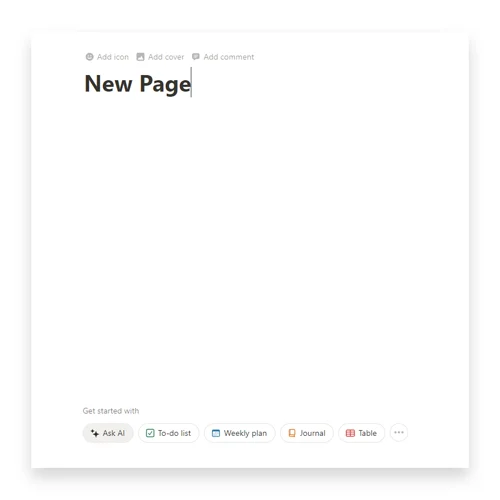
Everything inside a page is a block. A paragraph is a block. A toggle is a block. A heading is a block. You type / to insert a new block of any type. Once you understand Notion building blocks at this level, you stop fighting the editor.
3. Databases (now called data sources)
A database, which Notion now labels a data source, is a structured list. Each row is a page. Each column is a property like status, date, or owner. A database or data source holds tasks, content ideas, contacts, expenses, or any list you want to filter and sort. The terms database and data source mean the same thing in current Notion, so you will see both in the editor, in templates, and in this guide.
4. Views
A view shows the same database (data source) in a different shape. Table view, board view, calendar view, gallery view, timeline view. You build one database and look at it many ways.
5. Relations
Relations connect rows across databases and Notion data source. A task linked to a project. A content piece linked to a campaign. Relations turn separate lists into one connected system. This is the part making Notion feel like a workspace, not a notes app.
All of it. Pages, blocks, databases (Notion data source), views, relations. Master those and the rest is variations.
Your first Notion setup in 30 minutes
A new workspace looks empty for a reason. Notion does not pick a structure for you. So here is a clean 30-minute starter for any Notion beginner guide.
Minute 0 to 5: Sidebar setup
- Sign up for a free account.
- Create three top-level pages in the sidebar:
- 🧠 Brain (notes and ideas)
- ✅ Work (tasks and projects)
- 🌱 Life (personal, finance, health)
- Keep the icons. They make the sidebar scannable.
Minute 5 to 15: Your first databases (data sources)
Inside Work, add three inline databases, also called data sources, using /database:
- Tasks (with Status, Due Date, Priority, Project)
- Projects (with Status, Owner, Deadline)
- Notes (with Tag, Date, Linked Project)
Add one Relation between Tasks and Projects. Connect Notes to Projects too. You now have the core of a real workflow.
Minute 15 to 25: Daily and weekly views
Create two new views on Tasks:
- Today: filter by Due Date is Today
- This Week: filter by Due Date in the next 7 days, group by Status
Add a Board view on Projects grouped by Status. Your portfolio at a glance.
Minute 25 to 30: A daily home
Create a top page called Home. Drop two linked database views on it:
- Today’s tasks
- This week’s tasks
Pin Home to favorites. Your start screen.
You now have a working workspace built in under 30 minutes. It is small. By design. Notion gets messy when beginners try to build everything before using anything.
Five workflows that pay off fast (Tasks, Notes, Goals, Content, Finance)
These five Notion workflows for beginners give you a strong return on the time you spend setting them up.
1. Tasks and weekly planning
Use the Tasks database (Notion data source) from the starter setup. Add a Weekly view grouped by Day. Every Sunday, drag tasks into days. Every morning, open Today. The structure removes the daily question of what to do next.
2. Notes and second brain
Your Notes database (Notion data source), the data source from your starter setup, becomes the search layer for your work. Each meeting, idea, and reading session gets a note. Tag by source. Link to the related Project. Six months in, this database is the most useful page in your workspace.
3. Goals and quarterly review
Create a Goals database (data source) with Status, Quarter, and Target Date. Link Goals to Projects. Once a quarter, open the Goals page and review what moved. The visibility alone changes how you spend your time.
4. Content planning
Solopreneurs and creators get the fastest payoff here. A Content database (data source) with Status, Format, Platform, Publish Date, and Tags turns scattered ideas into a real pipeline. Pair it with a Calendar view and you have a content engine.
For a deeper setup, the UGC Creator OS template handles inspiration, scripts, asset tracking, and brand deals in one place. For SEO-driven blogs, the SEO Manager V.02 covers keyword planning, content briefs, and publication tracking.
5. Personal and business finance
Track income, expenses, and goals inside a Finance database, which Notion now labels a data source. Categories as a multi-select. Account as a relation. Monthly totals through rollups.
For a complete setup handling invoices, subscriptions, budgets, and reports without leaving Notion, the Finance OS template gives you the full system, ready on day one.
These five touch every part of work and life. Pick one. Use it for a week. Add the next one. Order matters more than the speed of the build.
Templates: when to build, when to buy
Notion templates split your time. Build the small things. Get help on the big systems.
When to build your own
- The use case is unique to your work
- The structure is small (one or two databases)
- You learn faster by building
- You want full control over property names and views
- You enjoy the design part of the process
When to use Notion templates for beginners
- The system covers many connected workflows
- You need it working this week, not next month
- You want proven property schemas, dashboards, and automations
- You want to skip the formula learning curve
A practical example: building a simple grocery list is a five minute job. Building a full client onboarding, project, invoice, and feedback system is a forty hour job if you have not done it before. When a paid template earns its price.
For specific use cases, ready-to-use systems include:
- Sales and client tracking: CRM V.2
- Email marketing and newsletters: Email Marketing Toolkit
- Agency operations and client work: Digital marketing Agency
- Creator workflow and content production: UGC Creator OS
- Finance and money tracking: Finance OS
- SEO and blog management: SEO Manager V.02
The rule of thumb: build it yourself if it teaches you something. Buy the template if it saves you a weekend.
Common beginner mistakes to skip
Most Notion beginners hit the same walls. Skip these five and your workspace stays usable.
- Building before using. A 40-page workspace with zero entries is dead weight. Start small. Add structure when the current setup hurts.
- Too many sidebar pages. A messy sidebar kills daily use. Keep three to five top pages. Move the rest inside.
- Treating every page as a database or data source. Some items are notes. A weekly journal does not need a Status property and three views.
- Ignoring relations. A workspace without relations is a stack of separate notes apps. The strength of how to use Notion sits in connected databases and data sources.
- Endless template hunting. Copying ten templates from YouTube leaves you with ten half-systems and zero workflow. Pick one starter, use it for a week, then decide what to expand.
The pattern under all five: building beats consuming. A small system you use beats a big system you do not.
Frequently asked questions
Is Notion free?
Yes. The Free plan covers personal use with unlimited blocks, unlimited pages, and limited AI requests. The Plus plan adds expanded uploads and version history. The Business plan adds private teamspaces and full AI for teams. For most solo users, Free is enough for months.
What is the fastest way to learn Notion?
Set up the 30-minute starter in this guide. Use it for a week. Add one workflow at a time. Trying to learn the whole app at once is the slowest path. Use cases teach faster than tutorials.
Should I start from scratch or use a template?
Both. Start a personal workspace from scratch so you understand the building blocks. Use a paid template when the system you need is large, repetitive, and already proven by someone else. The hours saved on a strong template usually pay back the price within the first project.
Does Notion replace Trello, Asana, or ClickUp?
For solo users and small teams, yes. The board view and project workflows cover most of what those tools do. Larger teams with heavy project structure sometimes keep a dedicated project tool and use Notion for docs and knowledge.
Will Notion AI write my notes for me?
Notion AI helps with summaries, rewrites, drafts, and quick answers from your workspace content. It works inside any page using the space bar shortcut. It supports your thinking. It does not replace the work of writing the first version yourself.
Final thoughts and next steps
Notion rewards small steps. Build three pages. Add three databases (data sources). Link them. Use the setup for a week. Then expand.
Pick one workflow from this guide and start there. Tasks for organization. Content for output. Finance for money. The first system running for a full week without breaking is the one proving Notion fits your work.
If you want the shortcut, browse the Fayedtion templates linked through this guide. Each one covers a full workflow tested in real businesses. Pair one with the starter setup above and you have a workspace built for the long run.