
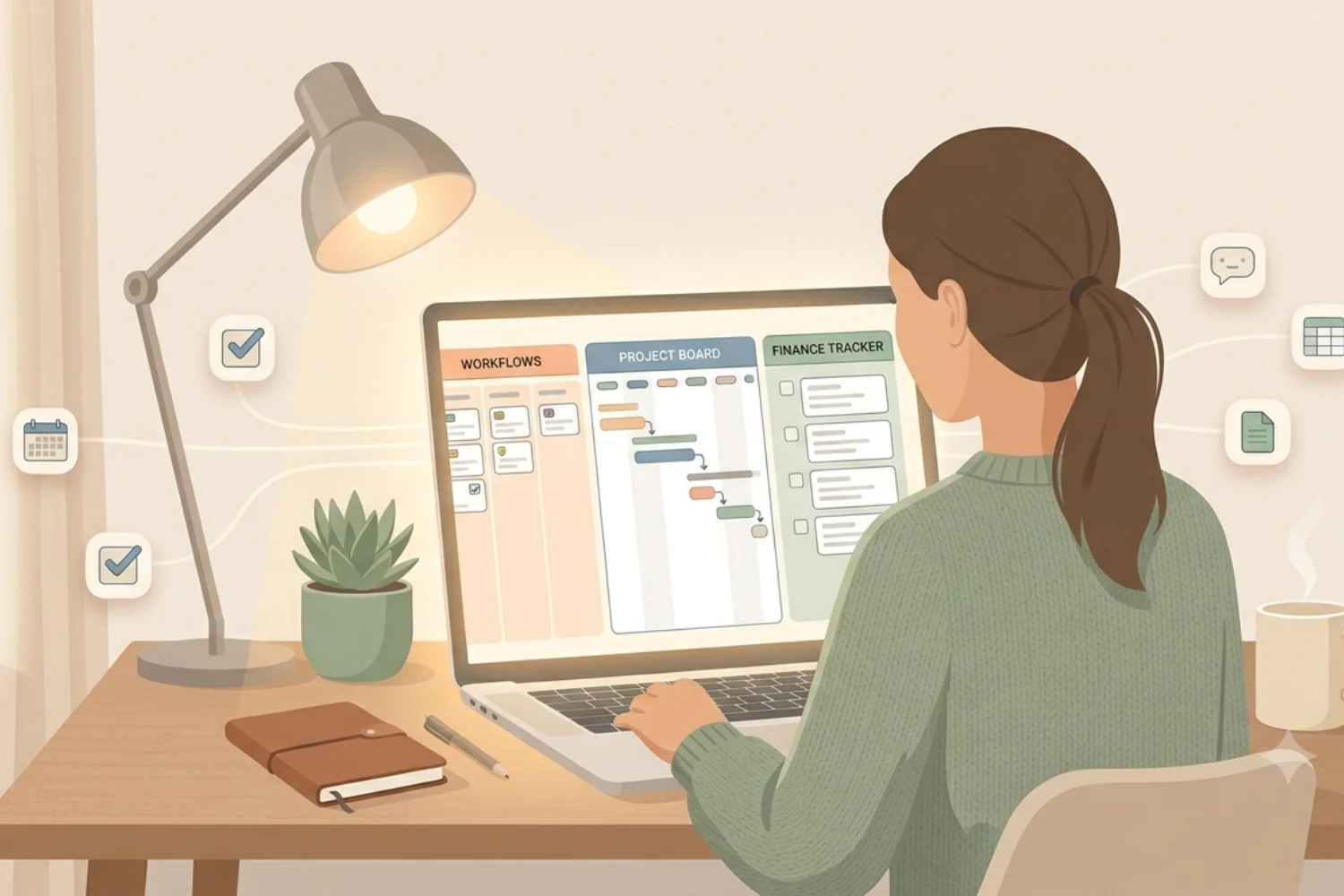
Notion project management turns a blank workspace into a full command center where tasks, projects, deadlines, and team updates live in one connected system. Instead of running Trello for boards, Asana for tasks, Google Sheets for tracking, and Slack for updates, you build one workspace that holds everything and links it together through databases (data sources, as Notion now calls the underlying schema).
This guide walks you through how to use Notion for project management from the ground up: the building blocks, the setup steps, the views that matter, and the templates that save you weeks of trial and error.
Table of Contents
What You’ll Learn
Why Notion Works for Project Management
Most project tools force one workflow on you. Trello gives you kanban. Asana gives you lists. Monday gives you rigid boards. Notion gives you the raw material to build the exact system your team needs and change it as your work changes.
The core advantage: every database in Notion (called a data source in the current interface) connects to every other one. Your tasks link to projects. Projects link to clients. Clients link to invoices. Nothing lives in isolation, and no information gets duplicated across five tools.
A 2026 report from Notion showed 98% of Forbes Cloud 100 companies run at least part of their operations inside Notion, with project management as one of the top three use cases.
The Core Building Blocks of a Notion Project System
Before you start clicking around, understand the four pieces every Notion project management setup needs:
- Tasks database (the data source that holds every action item)
- Projects database (the data source that groups related tasks)
- Relations (the connections between tasks, projects, people, and clients)
- Views (kanban, timeline, calendar, table, board, and gallery layouts)
Once these four exist, you have a working Notion project tracker. Everything else is refinement.
How to Create an Email Marketing Calendar: 7 Steps + Free Notion Template
Step 1: Build Your Tasks Database
Start with the smallest unit of work: the task. Create a new database (data source) and add these properties:
- Task Name (title)
- Status (Not Started, In Progress, Done)
- Priority (Low, Medium, High)
- Due Date (date)
- Assignee (person)
- Project (relation to Projects database, added in Step 3)
The Status property is the backbone of your kanban board later. Keep the options short and clear. Three to five status columns is the sweet spot for most teams.
Step 2: Add a Projects Database
Create a second database called Projects. This holds the bigger containers that tasks roll up into. Add these properties:
- Project Name (title)
- Status (Planning, Active, On Hold, Complete)
- Owner (person)
- Start Date and End Date
- Progress (formula that counts completed tasks)
- Tasks (relation, added in Step 3)
Each project row becomes a page you can open, fill with notes, meeting minutes, briefs, and the linked task list.
Step 3: Connect Tasks to Projects with Relations
This is where Notion pulls ahead of every other project tool. Open your Tasks database, add a new property, and select Relation. Point it at the Projects database. Notion will offer to create a two-way relation, and you should accept.
Now every task can be linked to a project, and every project page shows the full list of tasks that belong to it. Change the status of a task and the project’s progress updates in real time.
Add a rollup property on the Projects database to pull in the count of completed tasks. That gives you an at-a-glance progress bar for every active project.
Step 4: Add the Views That Actually Get Used
A database is only as good as its views. Create these five for your Tasks database:
| View | Best For | Filter |
|---|---|---|
| Kanban Board | Daily execution | Status ≠ Done |
| Timeline | Deadlines and dependencies | Due Date exists |
| Calendar | Week and month planning | Assignee = Me |
| Table (My Tasks) | Personal focus view | Assignee = Me AND Status ≠ Done |
| Board (By Priority) | Weekly triage | Group by Priority |
The Notion Kanban board for projects is the view most teams live in. Drag a card from In Progress to Done and the underlying database updates instantly.
Step 5: Layer in Custom Agents for Repeat Work
Since Notion 3.3 went live in May 2026, custom agents run background work on your project databases without your input. Set one up to:
- Auto-tag incoming tasks by keyword
- Send a daily digest of overdue items
- Create a weekly project status report
- Move stale tasks to a review queue
Each workspace gets 300 free credits per month for trying agents, and paid credits run at $10 per 1,000. Agents live inside your workspace and read the same tasks and projects databases you already built.
The Before and After of a Real Notion Setup
| Before Notion | After Notion |
|---|---|
| Trello for tasks | One Tasks database |
| Asana for team work | One Projects database |
| Google Sheets for tracking | Rollup formulas |
| Google Docs for briefs | Project pages with notes |
| Slack for updates | Comments on tasks |
| Calendar app for deadlines | Calendar view on tasks |
| 5+ subscriptions | One workspace |
One workspace, one source of truth, and full context on every task without app switching.
Common Mistakes to Avoid
Even with the right setup, most teams trip on the same four problems. Watch for these:
- Too many status options. Ten statuses feel thorough. They kill flow. Stick with three to five.
- No relation between tasks and projects. Without the link, your project pages stay empty and your tasks lose context.
- Duplicating information across pages. If a client name lives on a task, a project, and an invoice, one edit means three updates. Use relations instead.
- Building 20 views before you have any data. Ship three views, use them for a week, then add more based on what you actually need.
Notion for Team Project Management
Solo project management is simple. Team project management asks more of your setup. Add these when your team joins:
- Assignee on every task, no exceptions
- Comment threads on task pages for async discussion
- @mentions to pull the right person into the right decision
- A weekly review view filtered to tasks completed in the last seven days
- A backlog view filtered to Status = Not Started, sorted by priority
How to Use Notion: A Complete Beginner’s Guide (with Workflows That Stick)
Give every person a personal dashboard page that pulls their tasks across all projects. That single link becomes their morning starting point.
Ready-to-Use Notion Project Management Templates
Starting from a blank workspace works, and it takes time. These six paired templates give you a working system on day one, tuned for different project types.
Notion Starter Pack gives you the base workspace with tasks, projects, and daily planning already connected. Best for anyone new to Notion.
Task Manager Eisenhower matrix layers priority on top of your task list. Every task sorts into urgent, important, or delegate, so your day starts with the four items that actually move the needle.
Product Roadmap OS is built for teams shipping features, launches, or product milestones. Timeline view, epic tracking, and release notes in one connected setup.
Software Development OS handles the full engineering flow: bug tracking, sprint planning, releases, and documentation. Every relation is wired in.
Workflow & Automation OS pairs with any project setup and adds custom agent recipes for status updates, follow-ups, and weekly reports.
Focus Sprint Desk works alongside your main project system. When you need to lock in on one project for a week, this template runs the sprint, tracks daily wins, and closes with a Friday review.
Each template loads in one click. Duplicate to your workspace, adjust the properties to match your work, and you have a full Notion project tracker running in under an hour.
FAQs
Is Notion good for project management?
Yes. Notion combines tasks, projects, docs, and team context in one workspace. The relations between databases (data sources) let you build a project system that fits your team without paying for four separate tools.
Can I manage Agile or Scrum projects in Notion?
Yes. Build a backlog view, a sprint board (kanban), a burndown table, and a retrospective template. Notion handles Agile, Waterfall, and hybrid workflows because the schema flexes to whatever you build.
What is the difference between a database and a data source in Notion?
Since the 2026 update, Notion uses “data source” to describe the underlying schema that a database view displays. In practice, when you create a new tasks database, you are creating a data source with one default view. You can add more views (kanban, timeline, calendar) on top of the same data source.
How many projects can I run in one Notion workspace?
As many as you can manage. The workspace does not throttle you. Most solo operators run five to fifteen active projects. Small teams run twenty to fifty. Enterprise workspaces run thousands.
Do I need Notion AI for project management?
No, the core Notion project management setup works on the free plan. Notion AI and custom agents add automation on top: auto-tagging, daily digests, status reports, and background follow-ups. Start without AI, add it once your system is running.
Start Building Your Project System Today
Project management inside Notion is not a workaround. It is a full system that scales from a single freelancer tracking five client jobs to a team of fifty running a product roadmap. The pieces stay simple: tasks, projects, relations, views. The power comes from the connections between them.
Pick one Notion project management template above, duplicate it, and spend one hour setting up the two databases. By the end of the week, you will run your work from Notion and wonder why you paid for four other tools.
When you are ready to level up, pair your project setup with a Workflow & Automation OS and let custom agents handle the repeat work you used to do by hand.