

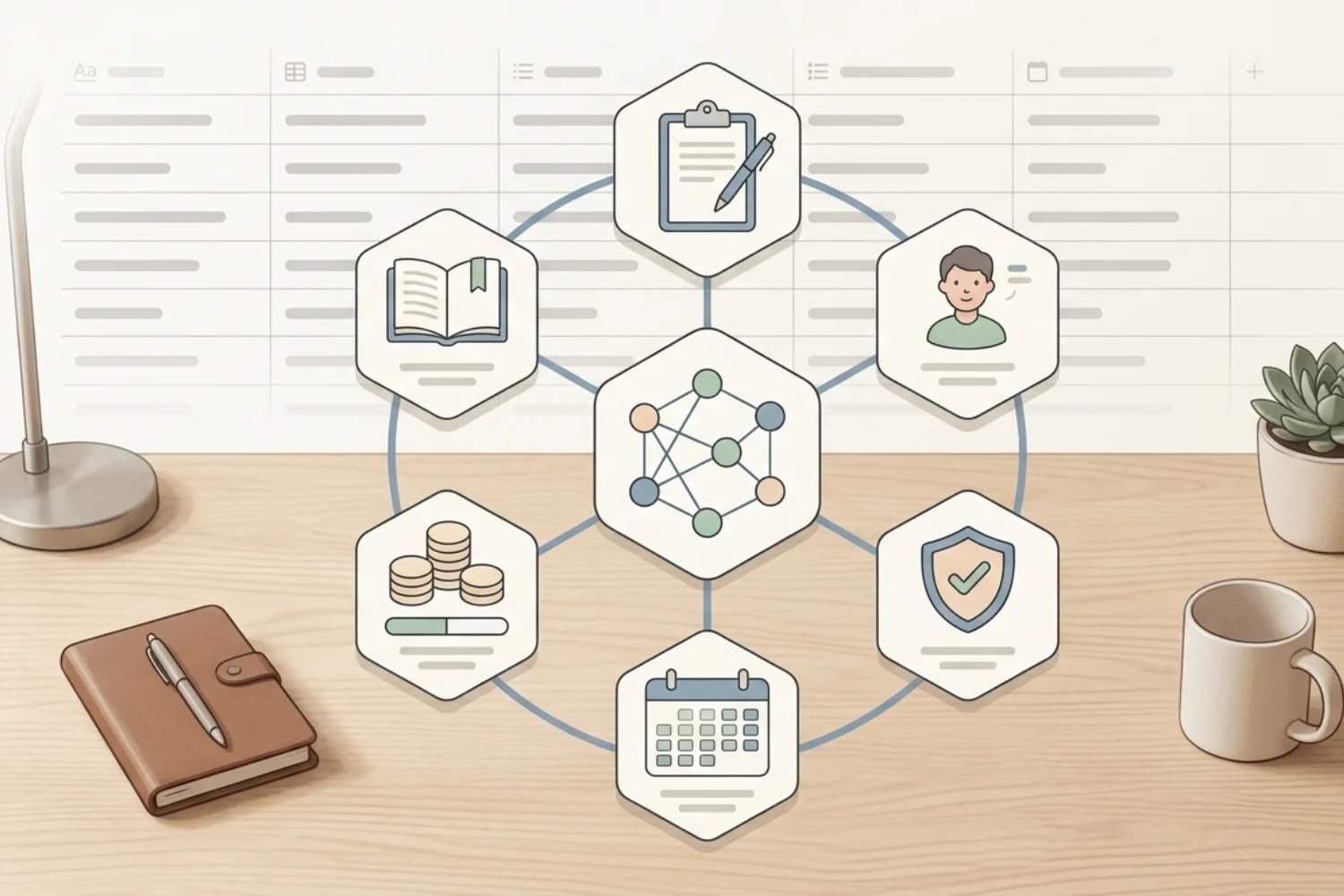
Your business does not need more tools. It needs a system. One place where every task, project, client, and process connects. One workspace where nothing falls through the cracks because everything already lives together.
The system has a name: a Notion business operating system.
This is the complete guide to building one. Not a surface overview. Not a list of tips. A full blueprint for turning Notion into the central nervous system of your business. Whether you are a solopreneur, freelancer, or small team leader, this guide walks you through every layer of the setup.
By the end, you will know exactly how to build a business OS in Notion handling your projects, tasks, clients, content, finances, and operations from a single workspace.
Table of Contents
What You’ll Learn
What is a business operating system?
A business operating system is the collection of processes, tools, and workflows keeping your business running. It is how work gets done. How information flows. How decisions get made.
Most businesses build their operating system accidentally. They sign up for a project management tool here, a note-taking app there, a CRM somewhere else, and a spreadsheet to absorb everything the other tools miss. The result is a patchwork of disconnected systems creating more friction than they remove.
A Notion business operating system replaces the patchwork with a single, connected workspace. Every function of your business lives in one place. Every database (Notion renamed them data sources in 2025) relates to every other one. Every workflow connects to the data it needs.
This is not about using Notion as a fancy notebook. This is about using it as the operational backbone of your entire business.
Why Notion works as a business OS
Not every tool serves well as an operating system. Notion qualifies because of four structural advantages.
1. Relational databases and data sources
Notion databases link to each other through relations and rollups. A task connects to a project. A project connects to a client. A client connects to invoices. The connected data model separates an operating system from a collection of spreadsheets. Notion renamed databases to data sources in 2025, so the help docs and newer templates use both terms. they describe the same building block.
2. Flexible views
The same data source appears as a table, board, calendar, timeline, gallery, or list. Different views for different contexts. Your tasks data source shows up as a Kanban board for workflow, a calendar for deadlines, and a filtered list for daily priorities. One source of truth, many ways to read it.
3. Templates and automation
Recurring processes become templates. Client onboarding, weekly reviews, content briefs, meeting notes. Build the template once, use it forever. Pair templates with Notion automations to trigger actions on row creation, status changes, recurrence, or button presses. With Custom Agents on Plus, Business, or Enterprise plans, you point an agent at a database to draft rows, summarize updates, or escalate work without manual input.
4. Everything in one place
When you run your business from Notion, you eliminate the constant switching between apps. No hunting for a document in Google Drive, a task in Asana, a note in Evernote, and a contact in a spreadsheet. One search. One workspace. One source of truth.
The architecture: how to structure your Notion business OS
A strong operating system needs a clear structure. Here is the architecture working for businesses of every size.
Layer 1: the command center (dashboard)
Your home page. The first thing you see when you open Notion. It gives you a complete picture of your business at a glance:
- Today’s tasks (linked database view, filtered to today)
- Active projects with status indicators
- Upcoming deadlines this week
- Recent client activity
- Quick links to every hub
- Key metrics via rollups
The dashboard is not decorative. It is functional. Every element links to a deeper layer of your system.
Layer 2: function hubs
Below the dashboard, organize your workspace by business function. Each hub is a page containing the databases, templates, and views for one area of your business:
- Projects Hub. All projects, linked to tasks and clients.
- Tasks Hub. Central task management with views for today, this week, by project, and by priority.
- Clients Hub. CRM with contact info, deal stages, interaction logs, and client portals.
- Content Hub. Editorial calendar, content briefs, keyword tracking, and publishing workflow.
- Knowledge Hub. SOPs, documentation, company wiki, and training materials.
- Finance Hub. Invoice tracking, expense logs, subscription management, and revenue dashboards.
Layer 3: core databases
The engine of your operating system. These data sources power everything:
| Database | Purpose | Key relations |
|---|---|---|
| Projects | Track all active and completed projects | Links to Tasks, Clients, Content |
| Tasks | Central to-do system | Links to Projects, assigned Person |
| Clients / Contacts | CRM and relationship management | Links to Projects, Interactions |
| Content | Editorial calendar and publishing | Links to Keywords, Platforms |
| Notes | Meeting notes, research, ideas | Links to Projects, Clients |
| SOPs | Standard operating procedures | Links to function areas |
| Finances | Invoices, expenses, subscriptions | Links to Clients, Projects |
The leverage is in the relations. When a task belongs to a project belonging to a client, you see everything about a client’s work from any entry point in the system.
Layer 4: templates
Templates turn your operating system into a repeatable machine:
- New Project template. Pre-filled with standard tasks, timeline, and checklist.
- Client Onboarding template. Step-by-step process for every new client.
- Weekly Review template. Structured reflection and planning for each week.
- Meeting Notes template. Agenda, notes, action items, and follow-ups.
- Content Brief template. Keywords, outline, SEO requirements, and draft space.
- SOP template. Step-by-step process documentation with screenshots.
Build a template for anything you do more than twice. The discipline turns your Notion business management system into a scalable engine.
Building your business OS: step by step
Here is the exact process to build a business OS in Notion from scratch.
Phase 1: foundation (week 1)
Goal: Create the workspace skeleton and core databases.
- Create your Dashboard page (leave it empty for now)
- Create hub pages: Projects, Tasks, Clients, Content, Knowledge, Finance
- Build the Tasks data source with properties: Name, Status, Priority, Due Date, Project (relation), Assigned To
- Build the Projects data source with properties: Name, Status, Timeline, Client (relation), Category
- Link Tasks and Projects via relation and rollup
- Create 2 to 3 views for each database (Table, Board, Calendar)
Borrow from: Task Manager Eisenhower matrix for a Tasks data source with priority quadrants already wired in.
Time investment: 4 to 6 hours
Phase 2: client and content systems (week 2)
Goal: Add the databases driving revenue.
- Build the Clients data source: Name, Company, Email, Status, Deal Value, Source
- Link Clients to Projects via relation
- Build the Content database: Title, Platform, Format, Status, Publish Date, Keywords
- Create an Interactions database linked to Clients (call logs, emails, meetings)
- Build views: Client Pipeline (Board), Content Calendar (Calendar), Active Deals (filtered Table)
Borrow from: CRM V.2 for the full CRM layer (clients, companies, projects, services, interactions) and SEO Manager V.02 for the content + keyword + publishing layer.
Time investment: 4 to 6 hours
Phase 3: knowledge and finance (week 3)
Goal: Document your processes and track your money.
- Build a Knowledge Base wiki for SOPs and documentation
- Create SOP templates for your 5 most common processes
- Build a Finance data source: Invoices, Expenses, Subscriptions
- Link Invoices to Clients and Projects
- Create rollup formulas for monthly revenue, outstanding invoices, and subscription costs
Borrow from: Workflow & Automation OS for an SOP module, service registry, error tracking, and health-review layer ready to drop into the Knowledge Hub. Add Finance OS for the income, expense, invoicing, VAT, and cash-flow stack with live dashboards.
This is where your Notion workspace for operations starts feeling like a real system. Every process is documented. Every dollar is tracked.
Time investment: 4 to 6 hours
Phase 4: dashboard and automation (week 4)
Goal: Connect everything to your command center.
- Return to your Dashboard page
- Add linked database views: Today’s Tasks, Active Projects, Upcoming Deadlines, Recent Client Activity
- Add rollup widgets: Total Revenue This Month, Tasks Completed This Week, Content Published
- Set up Notion automations: recurring tasks, status-change notifications, weekly review reminders
- Create quick-action buttons for common tasks: New Task, New Project, New Client, New Content Piece
Time investment: 3 to 4 hours
Phase 5: migration and optimization (weeks 5 to 6)
Goal: Move your data in and refine the system.
- Import data from existing tools (CSV imports, Notion importers)
- Build remaining templates for recurring workflows
- Run parallel with old tools for 2 weeks
- Identify friction points and adjust views, properties, and templates
- Retire old tool subscriptions once stable
Closest published shortcut: Digital marketing Agency ships as a near-complete business OS. CRM, lead tracking, projects, tasks, OKRs, campaigns, content calendars, SEO, invoicing, finance, proposals, and dashboards already live in one Notion workspace. Solo operators strip out the agency-specific pieces and keep the structural backbone.
Time investment: 6 to 10 hours
The 7 core workflows of a Notion business OS
A Notion business management system is only as good as its workflows. Here are the seven workflows every business OS needs.
Workflow 1: task management
Daily cycle:
- Open Dashboard. Review Today’s Tasks view.
- Complete tasks, update statuses.
- Add new tasks to Inbox view.
- End of day: move incomplete tasks to tomorrow or re-prioritize.
Weekly cycle:
- Weekly Review template: reflect on completed work, plan next week.
- Review all project statuses.
- Identify blocked tasks and resolve blockers.
Workflow 2: project management
- Every project starts from the New Project template.
- The template auto-generates standard tasks, milestones, and checklists.
- Timeline view shows deadlines across all projects.
- Board view shows project stages: Planning, Active, Review, Complete.
- Rollups show task completion percentage for each project.
Workflow 3: client management
- New leads enter the Clients data source at the Lead stage.
- Board view shows the pipeline: Lead, Contacted, Proposal, Active, Completed.
- Each client page contains linked interactions, projects, and invoices.
- Client Portal pages (shared externally) show project status without exposing internal data.
Workflow 4: content production
- Ideas enter the Content database at Idea status.
- Content Brief template structures each piece: keywords, outline, SEO targets.
- Calendar view shows the publishing schedule across platforms.
- Status workflow: Idea, Draft, Editing, Ready, Scheduled, Published.
- Keywords data source links to each content piece for SEO tracking.
Workflow 5: knowledge management
- Every process gets an SOP page in the Knowledge Hub.
- SOPs use a consistent template: Purpose, Steps, Screenshots, Owner, Last Updated.
- New team members start with the Knowledge Hub for onboarding.
- Wiki verification keeps SOPs current.
Workflow 6: financial tracking
- Invoices database tracks: Client, Amount, Status (Sent, Paid, Overdue), Due Date.
- Expenses database tracks: Category, Amount, Date, Receipt.
- Subscriptions database tracks: Tool, Monthly Cost, Renewal Date, Status.
- Dashboard rollups show: Monthly Revenue, Outstanding Invoices, Total Expenses, Net Profit.
Workflow 7: weekly and monthly reviews
- Weekly Review (30 minutes): Review completed tasks, plan next week, check project statuses, update client pipeline.
- Monthly Review (60 minutes): Financial review, content performance, project retrospectives, process improvements.
These reviews keep your operating system alive. Without them, even the best system decays. Pair the review cadence with yearly planner for the daily layer and Life Planner for the goal, weekly, and monthly review layer.
A day running your business from Notion
8:00 AM. Open Notion. Dashboard shows 7 tasks for today, 2 client follow-ups due, and 1 content piece to publish.
8:15 AM. Check the Projects Hub. Project Alpha is 80 percent complete. Two tasks remain. You update the status and add a note.
9:00 AM. Client meeting. Open the client page. See their full history: past projects, recent interactions, outstanding invoice. Take meeting notes using the Meeting Notes template. Action items auto-link to Tasks.
10:30 AM. Content work. Open the Content Hub. Today’s piece is in Ready status. Review, update to Published, add the live URL.
12:00 PM. Quick task review. 4 of 7 tasks complete. Reprioritize the remaining 3.
2:00 PM. New client inquiry. Add them to the CRM at Lead stage. Create a follow-up task linked to their contact page.
4:00 PM. End of day. All tasks complete. Tomorrow’s view already shows what is next. Close Notion. Done.
No app switching. No hunting for information. No wondering where something lives. This is what it feels like to run your business from Notion.
Common mistakes when building a Notion business OS
Mistake 1: over-engineering from day one
Start simple. Add complexity only when you feel the pain of not having it. A database with 20 properties on day one will overwhelm you.
Mistake 2: not using relations
Databases without relations are bare spreadsheets. The leverage of a Notion business operating system comes from connected data sources. Link everything.
Mistake 3: skipping templates
Without templates, every recurring task requires manual setup. Templates are what make your system scalable and consistent.
Mistake 4: building without a dashboard
If you do not have one page showing you the state of your business, you will stop using the system. The dashboard is the habit anchor.
Mistake 5: never reviewing or iterating
Your business changes. Your OS must change with it. Schedule monthly reviews to update properties, archive old views, and add new templates.
Notion business OS vs. dedicated tools
| Capability | Dedicated tools | Notion business OS |
|---|---|---|
| Project management | Asana ($10/user/mo) | Built-in databases and views |
| Task management | Todoist ($4/mo) | Tasks database with filters |
| CRM | HubSpot Free or Pipedrive ($14/mo) | Clients database with pipeline |
| Documentation | Confluence ($5/user/mo) | Wiki pages and knowledge base |
| Notes | Evernote ($8/mo) | Notes database with tags |
| Content calendar | CoSchedule ($19/mo) | Content database with calendar view |
| SOPs | Process Street ($25/mo) | Template pages with checklists |
| Total monthly cost | $85+ per user | $8 to 15 per user |
The cost savings matter. The bigger advantage is integration. In Notion, your CRM data connects to your project data connects to your content data connects to your financial data. In separate tools, the connection requires expensive middleware like Zapier.
Who should (and should not) use Notion as a business OS
Notion as a business OS works best for:
- Solopreneurs managing everything alone
- Freelancers juggling multiple clients and projects
- Small teams (2 to 20 people) needing a central workspace
- Service businesses with client-facing workflows
- Content creators managing production across platforms
- Agencies running multiple client projects
Consider alternatives if:
- You need enterprise-grade security and compliance (SOC 2 Type II)
- Your team exceeds 50 people and needs complex permission hierarchies
- You require real-time collaboration features like video or chat
- Your workflow depends on deep integrations with industry-specific software
For most small businesses, an all-in-one Notion workspace covers 80 percent or more of operational needs at a fraction of the cost.
Scaling your business OS over time
Your operating system should grow with your business. Here is what scaling looks like.
Solo stage (1 person):
- Dashboard, Tasks, Projects, Notes
- 3 to 5 templates
- Simple views
Growth stage (2 to 5 people):
- Add CRM, Content, and Finance databases
- Team-specific views and permissions
- Shared templates and SOPs
- Notion automations for notifications
Scale stage (5 to 20 people):
- Department-specific hubs
- Advanced formulas and rollups for reporting
- API integrations with external tools
- Onboarding workspace for new hires
- Regular system audits and optimization
The benefit of Notion is the foundation never gets thrown away. You add layers, not rebuilds.
Frequently Asked Questions
How long does it take to build a Notion business operating system?
Plan for 4 to 6 weeks of part-time work. The foundation (databases, relations, and basic views) takes about 15 hours. Templates, automations, and migration add another 10 to 20 hours. You start using the system within the first week while continuing to build.
How beginner-friendly is a Notion business OS?
Highly approachable. No coding required. If you use spreadsheets, you have the skills to build a Notion OS. The learning curve is in understanding relations and views, which takes a few hours of practice. Start with the core databases and add complexity gradually.
Is Notion secure enough for business data?
Notion uses encryption at rest and in transit, offers two-factor authentication, and provides granular sharing controls. For most small businesses, this is more than sufficient. If you handle sensitive healthcare or financial data, check Notion’s compliance certifications against your industry requirements.
What happens if Notion goes down?
Notion maintains 99.9 percent uptime. The desktop app works offline for existing pages. For critical data, export your workspace monthly as a backup. The risk of Notion downtime is lower than the risk of losing data across 10 disconnected tools.
Will Notion work as my hub if my team uses other tools?
Yes. Notion works as a central hub even if your team uses Slack for chat, Zoom for calls, and QuickBooks for accounting. The key is making Notion the single source of truth for projects, tasks, and documentation while integrating with specialized tools via API or Zapier.
Key takeaways
- A Notion business operating system replaces 5 to 8 separate tools with one connected workspace
- The architecture follows four layers: Dashboard, Function Hubs, Core Databases and data sources, and Templates
- You build a business OS in Notion in 4 to 6 weeks of part-time work (25 to 35 total hours)
- Seven core workflows cover tasks, projects, clients, content, knowledge, finances, and reviews
- A Notion workspace for operations saves $70+ per user per month compared to dedicated tools
- Start simple and add complexity only when needed; over-engineering is the most common mistake
- The system scales from solo operators to teams of 20+ without rebuilding the foundation
- When you run your business from Notion, you eliminate context switching and keep all business data connected
- A strong Notion business management system built as an all-in-one Notion workspace turns your Notion business OS into a living operational backbone