

Email workflow conditional logic is what turns a linear drip into a smart, branching sequence. It is the difference between sending the same email 5 to send everyone and sending email 5A to clickers and email 5B to non-clickers.
Every mid-tier ESP now supports it. HubSpot calls them if/then branches. Its documentation on HubSpot if/then branches in workflows shows enrolled contacts moving down multiple paths based on properties or actions from earlier in the flow. MailerLite calls it a Condition step. Its guide on MailerLite condition steps splits a workflow into two branches based on a rule, with up to five rules inside a single condition.
This article walks through the 5 branching patterns worth building, with a Mermaid diagram for each. Skip the ones you do not need. Do not build all five at once.
Table of Contents
What You’ll Learn
What conditional logic does inside an automation
A linear sequence sends the same emails to everyone in the same order.
Conditional logic checks a rule at a step in the flow and routes the subscriber down a Yes or No path from there.
The check looks at things like:
- Did they open the previous email?
- Did they click a specific link?
- Did they buy or only browse?
- Do they match a tag or segment?
- Has a date passed (renewal, trial expiration, birthday)?
Each check is one if-then email automation branch. Chain a few together and you have a real decision tree.
Linear vs. branching sequences

That is the linear flow. Everyone gets the same 4 emails in the same order.
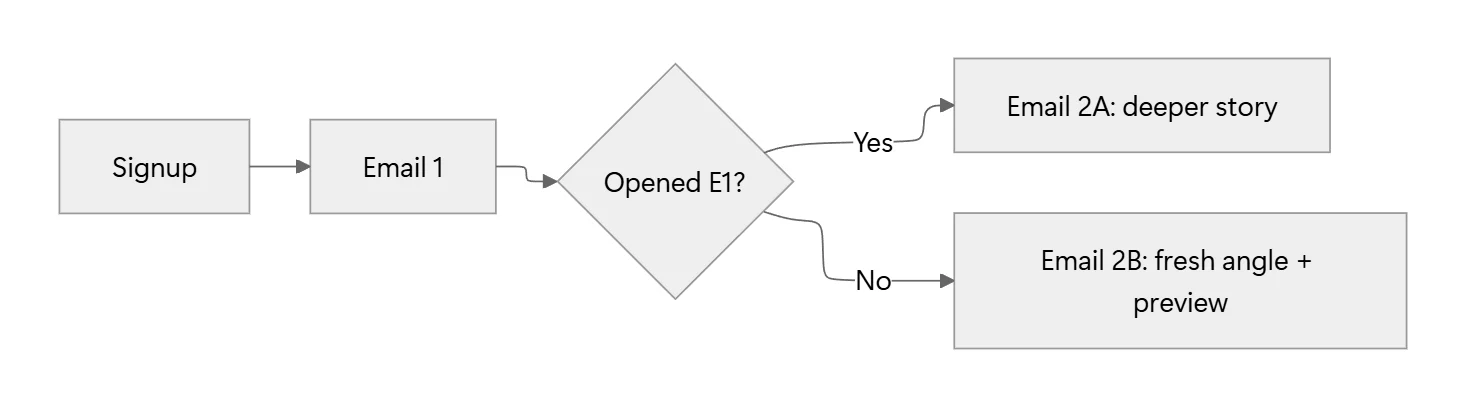
That is a branching email workflow with one condition. Same list, two experiences.
Each branch below is one of these condition blocks.
Branch 1: If opened vs. not opened
Best use: early welcome sequences, product education flows.
Branch the flow after email 1 or 2 based on whether the subscriber opened the previous email. Openers get a deeper story. Non-openers get a different angle so email 2 does not read like a repeat.
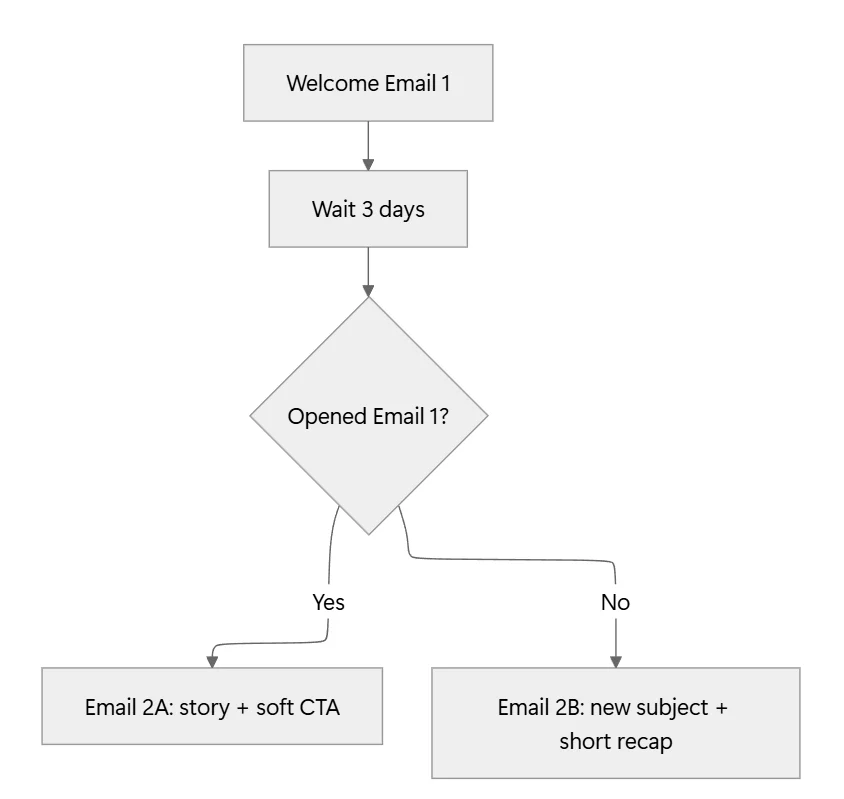
A note on open tracking: Apple Mail Privacy proxies opens, so treat opens as a weak signal for iOS-heavy lists. Prefer click branches when the audience is heavily Apple.
Branch 2: If clicked link X vs. link Y
Best use: interest-tagging quizzes, product education, service-vs-product menus.
Insert two or three obvious links in a single email, then branch based on which link the reader clicked. This is the fastest way to build tag-based content swaps without asking the reader to fill a preference form.
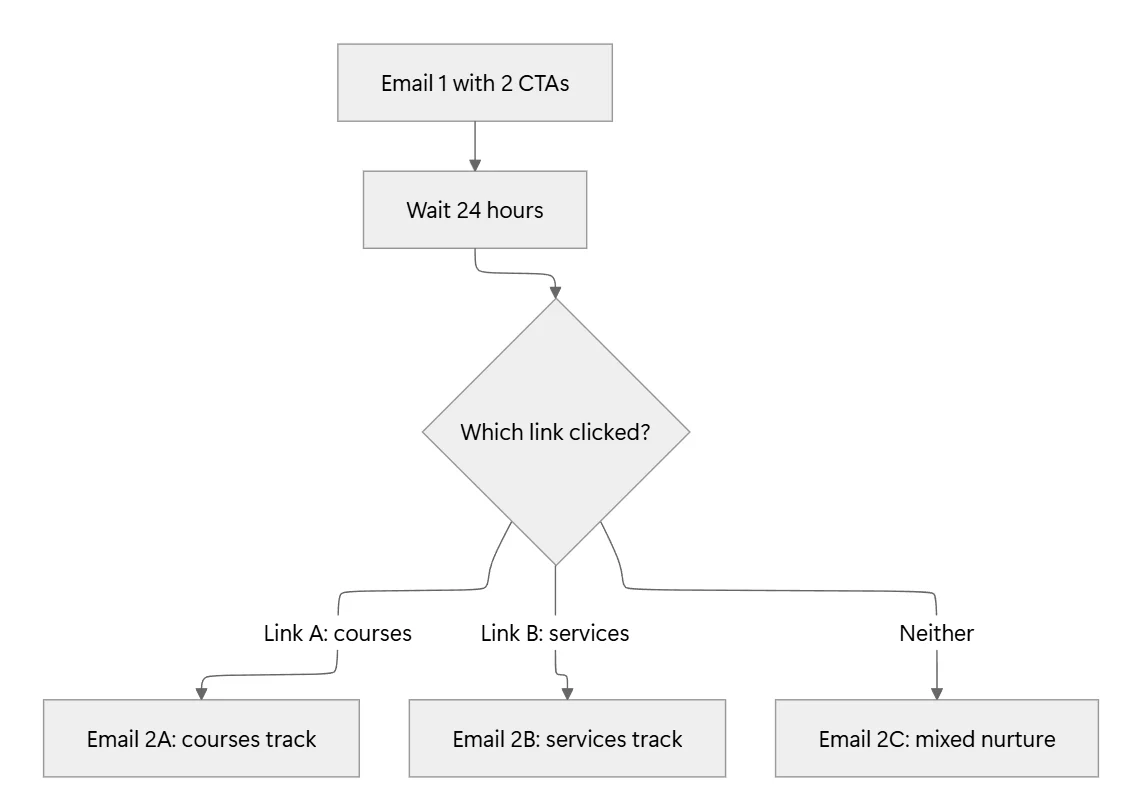
HubSpot supports this natively via “Contact clicked a link in email” with a specific-link option. MailerLite and Brevo use a Condition step with a “clicked link” rule. Mailchimp uses if-else split under Customer Journeys.
Branch 3: If purchased vs. browsed
Best use: ecommerce, course launches, SaaS trials.
After a browse or add-to-cart event, wait a set window (2 to 24 hours), then branch based on whether a purchase happened. Buyers go into a thank-you and post-purchase flow. Non-buyers move into abandoned cart or nurture.
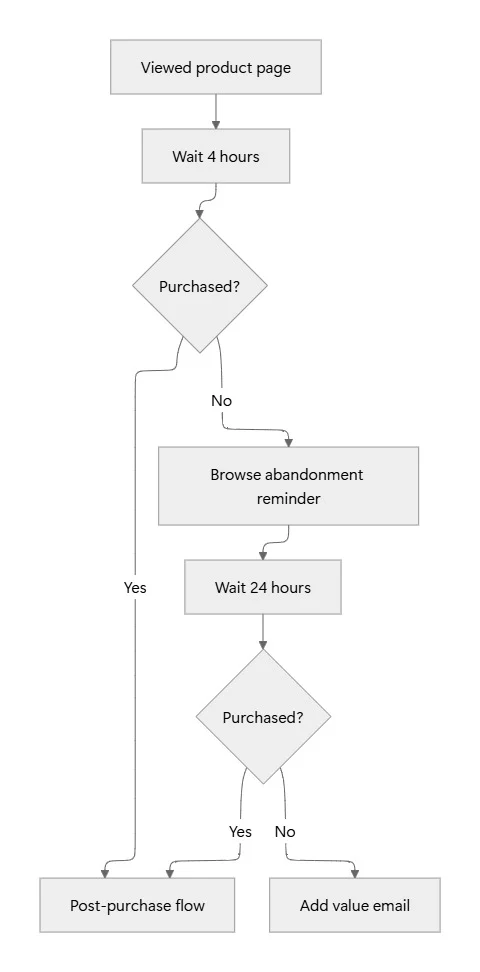
This is one of the highest ROI patterns because it prevents buyers from getting nag emails and keeps browsers on the right track.
Branch 4: If segment matches (tag-based)
Best use: shared broadcasts across mixed audiences (B2B vs. B2C, buyer vs. lead, VIP vs. standard).
At the top of an automation, check which tag or segment the subscriber belongs to and send them down a matching branch.
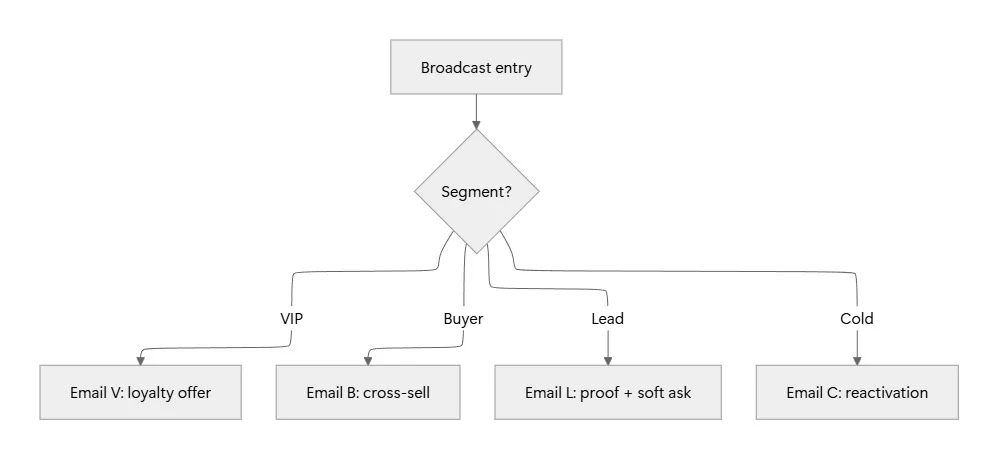
One caveat with HubSpot: records go down the first branch they match, not all of them. Structure the most specific segment first (VIP), then buyer, then lead, then cold. MailerLite and Brevo follow the same top-down evaluation.
Branch 5: If date condition met (renewal, expiration)
Best use: subscription renewals, trial endings, birthdays, event reminders.
Branch based on how many days until (or since) a specific date property. This is where an email decision tree earns its keep because dates change per subscriber, and no linear send can cover it.
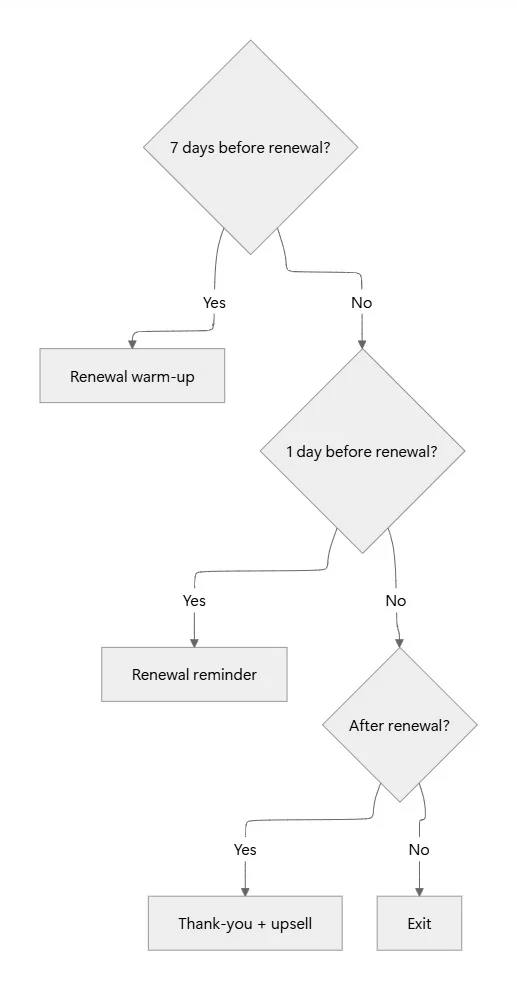
Date-based conditional split email logic runs in most ESPs off a subscriber-level date field (renewal_date, trial_end, birthday). Set the automation to run daily and check the date field on each pass.
How to build branches in MailerLite, Brevo, Mailchimp, and HubSpot
A quick map of what each ESP calls the same feature:
| ESP | What it is called | Setup path |
|---|---|---|
| HubSpot | If/then branch | Workflow builder → Add action → If/then branch |
| MailerLite | Condition step | Automation builder → Add step → Condition |
| Brevo | Condition | Automation → Add condition → Yes / No branches |
| Mailchimp | If-else split | Customer Journey → Add rule → If-else |
| ActiveCampaign | Conditional and workflow | Automation → Add block → Conditions and Workflow → If-else |
General setup checklist:
- Choose the rule (open, click, tag, purchase, date).
- Set a wait step before the branch so the signal has time to arrive.
- Build both paths, including a default (fallback) branch for non-matches.
- Add an exit rule (a purchase or reply) that pulls the subscriber out of both paths.
- Preview the flow with a test contact for each branch.
For the underlying trigger types (browse, click, purchase, form fill, tag applied) that most branches build on, pair this with Email Automation Triggers Explained: The Complete Reference for Beginners. And when segments feed the branch, pair with Email Personalization Tactics Beyond First Name (8 Tactics Ranked) for the segmentation and tagging layer.
Decision rules: is this branch worth building?
Ask three questions before adding a new branch:
- Does the audience receiving each branch behave clearly differently?
- Would sending the same email to both groups noticeably annoy one of them?
- Can the branch be maintained without breaking the flow?
If the answer to any is no, keep the flow linear.
Sanity check table
| Question | Branch it | Keep linear |
|---|---|---|
| Does behavior differ per group? | Yes | No |
| Is the wrong send actively annoying? | Yes | No |
| Do you have data for each branch? | Yes | No |
| Will you maintain both paths? | Yes | No |
When NOT to use branching (the over-engineering trap)
A branching email workflow that no one maintains is worse than a linear one.
Signs you are over-engineering:
More than 3 nested branches
Every layer doubles the number of paths to test. Three levels means eight paths, four means sixteen. Above three, the workflow becomes untestable in practice.
Rules based on unreliable signals
Branching on Apple Mail opens, or on a single click across a mixed audience, produces false paths.
Branches with no meaningful difference
If Email 2A and Email 2B end up 90 percent identical, kill the branch and send one email.
Building branches before writing content
If-then email automation cannot fix a weak email. Start with strong copy in a linear flow first, then branch only where behavior differs.
Missing fallback path
Every condition needs a default branch. A subscriber who matches no rule should still receive something (or be exited cleanly), never stall inside the flow.
FAQs
What is email workflow conditional logic?
Email workflow conditional logic is a step inside an automation that checks a rule (open, click, tag, purchase, date) and routes each subscriber down a Yes or No path based on the result.
What is the difference between a linear and a branching email workflow?
A linear flow sends the same emails in the same order to everyone. A branching email workflow sends different emails based on subscriber actions, tags, or dates. Branching lifts engagement when the audience really behaves differently, and hurts it when the branches are cosmetic.
Which ESPs support conditional split email logic?
HubSpot, MailerLite, Brevo, Mailchimp, ActiveCampaign, Klaviyo, and Kit all support it. The name changes (if/then branch, Condition step, if-else split), the concept is the same.
Can I branch on opens?
Yes, but treat opens as a weak signal. Apple Mail Privacy proxies opens for iOS users, so click and purchase branches are more reliable.
How many branches should a single workflow have?
Three or fewer per workflow for most lists. Every extra branch doubles the paths that need testing. If you need more, split the workflow into two separate ones.
What is an email decision tree?
An email decision tree is a visual map of every branch in a workflow, showing which condition sends the subscriber down which path. Sketch the tree on paper (or Mermaid) before building it in the ESP.
Key takeaways
Email workflow conditional logic is the single fastest way to make an existing sequence feel personal.
Start with these five patterns:
- If opened vs. not opened
- If clicked link X vs. link Y
- If purchased vs. browsed
- If segment matches
- If date condition met
Build one branch at a time. Add a fallback path. Test each branch with a real contact. Keep the total under three nested levels.
Every ESP handles this now, and the payoff is real: subscribers see the email that fits their action, not the one that fits your calendar.