
You check Trello for tasks. Then Airtable for clients. Then Google Sheets for revenue. Then Slack for messages. Four tools. Four tabs. Four places pulling your attention before you even start working.
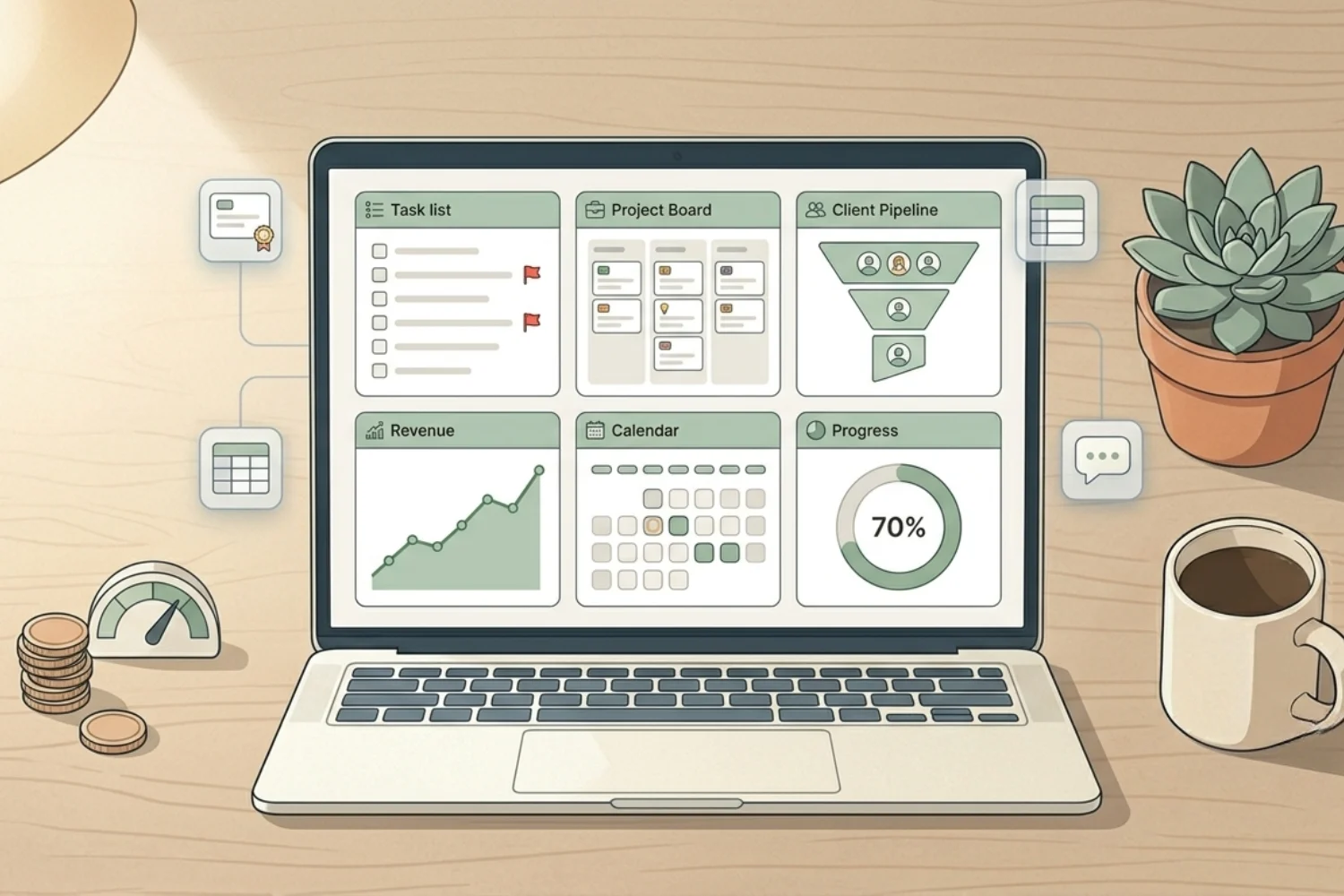
What if you opened one page and saw everything important? Projects in progress. Overdue tasks. Client pipeline status. Revenue this month. Content scheduled for this week. All on one screen.
A Notion business dashboard does exactly this. It pulls live data from your existing databases and data sources into a single view so you make decisions faster and stop hunting for information across scattered tools. This guide walks you through a complete Notion dashboard setup step by step, with five published Fayedtion templates worth borrowing from. No code. No integrations. Pure Notion.
The result is a workspace where one page replaces four tabs. Open it first thing every morning and you see the health of the operation in under 30 seconds.
Table of Contents
What You’ll Learn
What is a business dashboard (and why most are broken)
A business overview dashboard is a single page showing the health of your business at a glance. Revenue trends. Active projects. Upcoming deadlines. Client status. Team capacity.
Most solopreneurs and small teams do not have one. They have pieces of information scattered across 4 to 8 tools. Checking business health means opening multiple apps, cross-referencing data manually, and holding numbers in their head.
Some try to build dashboards in Google Sheets. The problem: spreadsheets are static. You enter data manually. The moment you stop updating, the dashboard becomes useless.
A Notion business dashboard is different because it is alive. It pulls from your actual databases and data sources. When you update a task status, the dashboard reflects it. When you move a client to a new pipeline stage, the dashboard shows the change. No manual data entry. No stale information.
The foundation: Notion linked databases
Before building your dashboard, you need to understand the core feature making it work: Notion linked databases.
A linked database (Notion renamed databases to data sources in 2025, so both terms appear across the help docs) is a filtered view of an existing database displayed on a different page. The data stays in the original database. The linked view shows only what you want to see, where you want to see it.
Example: You have a Projects database with 50 projects. On your dashboard, you create a linked view filtered to show only projects with status In Progress. You see 6 active projects. The other 44 stay hidden but still exist in the original data source.
Notion linked databases are the building blocks of every dashboard. Without them, you would need to duplicate data across pages. With them, you create multiple views of the same data source without any duplication.
This is what separates Notion from spreadsheets and most project management tools. One data source. Unlimited views. Each view filtered, sorted, and formatted for a specific purpose.
What your dashboard should show
A good business overview dashboard answers 5 questions in under 30 seconds.
What needs my attention today? Overdue tasks, upcoming deadlines, and urgent items.
How are my projects doing? Active projects with status, progress, and next milestones.
What is my client pipeline status? Leads in progress, proposals sent, deals closing soon.
How is revenue tracking? Income this month, outstanding invoices, revenue vs. target.
What content is scheduled? Upcoming posts, drafts in progress, publishing calendar.
If your dashboard answers these 5 questions on one page, you have an all-in-one business dashboard replacing the need to check multiple tools every morning.
Notion dashboard setup: step by step
Here is how to build your Notion dashboard template from scratch. The walkthrough assumes you already have basic databases for Projects, Tasks, Clients, and Content. If you do not, create them first with simple properties, or borrow the schema from a Fayedtion template covering the section.
Step 1: Create your dashboard page
Create a new page in Notion. Name it Business Dashboard or HQ or whatever you will open daily. Add an icon and cover image to make it visually distinct. The page becomes your home base.
Step 2: Add the daily focus section
At the top of your dashboard, add a linked view of your Tasks data source. Filter it to show tasks where the due date is today or overdue and the status is not Done. Choose a list view for quick scanning. Sort by priority (high to low).
Borrow from: Daily planner for a ready-made schedule, priorities, and routine layout.
This section answers: What needs my attention right now?
Step 3: Add the active projects section
Below the daily focus, add a linked view of your Projects database. Filter it to show only projects with status In Progress or Active. Use a board view grouped by status for a visual pipeline. Or use a table view with columns for project name, client, deadline, and progress percentage.
Borrow from: Digital marketing Agency if you need a project + tasks + OKRs stack already wired together.
This section answers: How are my projects doing?
Step 4: Add the client pipeline
Add a linked view of your Clients or CRM data source. Filter it to show clients in active pipeline stages (Lead, Contacted, Proposal, Negotiation). Use a board view grouped by stage. Each card shows the client name, deal value, and next follow-up date.
Borrow from: CRM V.2 for a freelancer or team-grade pipeline with companies, projects, meetings, and services already connected.
This section answers: What is my client pipeline status?
Step 5: Add revenue tracking
Add a linked view of your Finance or Income database. Filter it to show entries from the current month. Use a table view with columns for client, amount, date, and status (Paid, Pending, Overdue). Add a sum at the bottom for total revenue this month.
If you track expenses in a separate data source, add another linked view below filtered to this month’s expenses. The difference between the two totals is your monthly profit.
Borrow from: Finance OS for an income, expense, invoicing, VAT, and cash-flow stack with live dashboards already built in.
This section answers: How is revenue tracking?
Step 6: Add the content calendar
Add a linked view of your Content database. Filter it to show content with a publish date in the next 7 to 14 days. Use a calendar view or a list view sorted by publish date. Show the title, platform, and status.
Borrow from: SEO Manager V.02 for a keyword-to-content-to-report pipeline you drop into the dashboard as a filtered view.
This section answers: What content is coming up?
Step 7: Organize with columns and sections
Use Notion columns to place sections side by side. Put Daily Focus and Active Projects in the top row. Put Client Pipeline and Revenue in the middle row. Put Content Calendar at the bottom.
Add headings with icons to separate sections visually. Use dividers between major sections. The goal is to scan the entire dashboard in under 30 seconds without scrolling more than once.
Borrow from: 2026 Notion Setup Guide + Free Template if this is your first Notion build and you want a no-database starter dashboard before wiring real data sources in.
Advanced Notion dashboard ideas
Once your basic dashboard works, here are Notion dashboard ideas worth layering on top.
Use filtered views for different time frames. Create a This Week view and a This Month view for tasks. Toggle between them depending on your planning horizon.
Add a Waiting For section. A linked view of tasks filtered to status Waiting or Blocked. This surfaces bottlenecks without you having to remember them.
Add a Quick Capture section. Place a simple toggle or callout block at the top with a few bullet points for capturing ideas, notes, or tasks throughout the day. Process them into the proper databases at the end of the day.
Use database templates for recurring items. If you review your dashboard every Monday, create a template for Weekly Review pre-filling your review checklist.
Embed external widgets. Notion supports embeds for Google Calendar, weather, clocks, and other widgets. Add a calendar embed if you keep your schedule in Google Calendar but want to see it on your Notion business dashboard.
Add a Custom Agent. With Custom Agents on Plus, Business, or Enterprise plans, point a daily-briefing agent at your dashboard and have it draft the morning summary into a private page before you open the laptop.
Common dashboard mistakes to avoid
Too many linked views. If your dashboard has 15 database views, it loads slowly and overwhelms you. Stick to 5 to 7 views maximum.
No filters. Showing your entire task database on the dashboard defeats the purpose. Every linked view should be filtered to show only what matters right now.
Building before your databases are ready. A dashboard is only as good as the data behind it. If your Projects data source has 3 entries and no consistent properties, fix the data source first.
Not using it daily. A dashboard works when it becomes your default starting page. If you build it and never open it, the system fails. Set it as your Notion sidebar favorite. Open it first thing every morning.
Making it too pretty. Spending 3 hours choosing icons and colors instead of 30 minutes setting up functional views. Function first. Aesthetics second.
The all-in-one business dashboard vs. multiple tools
Here is why a single Notion dashboard beats checking 4 separate tools.
One login instead of four. You open Notion and see everything. No switching between Trello, Airtable, Google Sheets, and your CRM.
Live data instead of static reports. Every view on your dashboard pulls from real databases and data sources. No manual updates needed.
Context instead of fragments. When you see a project on your dashboard, click into it and see the related client, tasks, notes, and content. Everything connects. In a scattered stack, you see the project name but need to open 2 other tools to get the full picture.
Customizable instead of fixed. You decide what shows up, how it is filtered, and how it is arranged. No tool dictates your dashboard layout.
An all-in-one business dashboard in Notion replaces the morning routine of checking 4 to 5 tools. This saves 20 to 30 minutes daily. Over a month, those minutes return 8 to 10 hours of productive work.
Who this works for
Solopreneurs managing everything alone. You need one view showing your entire operation without opening multiple tools.
Small teams under 10 people. Everyone opens the same dashboard and knows project status, pipeline health, and upcoming deadlines without asking.
Freelancers juggling multiple clients. A client pipeline view plus active projects view gives you instant clarity on your workload.
Content creators managing production. A content calendar view alongside project tracking keeps your publishing schedule visible.
Frequently Asked Questions
How long does it take to set up a Notion business dashboard?
If your databases or data sources already exist, 30 to 60 minutes. If you need to create them first, plan for 2 to 3 hours total. Starting from a Fayedtion template (CRM V.2, Finance OS, or Digital marketing Agency) cuts the schema work in half.
Do I need a Notion paid plan for a dashboard?
No. The free plan supports linked databases, filtered views, and every dashboard feature in this guide. Paid plans add unlimited file uploads, larger team features, AI, and Custom Agents.
Will my team see the same dashboard?
Yes. In a shared Notion workspace, everyone sees the same dashboard with live data. You also have the option to create role-specific dashboards with different filtered views per teammate.
What if my dashboard loads slowly?
Reduce the number of linked views. Each linked database or data source adds load time. Keep your dashboard to 5 to 7 views maximum. Also, close toggle sections for data sources you do not check daily.
Should I use a template or build from scratch?
Build from scratch if you already have databases. Your dashboard should reflect your specific data sources and workflow. A pre-built template works if you are starting fresh and want a head start on the schema. Either way, borrowing from CRM V.2 or Finance OS saves hours of setup.
Key Takeaways
A Notion business dashboard replaces the habit of checking 4 to 5 tools every morning. It uses Notion linked databases to pull filtered views of your projects, tasks, clients, revenue, and content onto one page. The Notion dashboard setup takes 30 to 60 minutes once your databases are ready.
A good business overview dashboard answers 5 questions in under 30 seconds: what needs attention, project status, pipeline health, revenue tracking, and upcoming content.
Add a couple of Notion dashboard ideas from the advanced section, borrow the schema from a published Fayedtion Notion dashboard template like CRM V.2 or Finance OS, and you end up with an all-in-one business dashboard matching your workflow. One page. One login. Full visibility.