

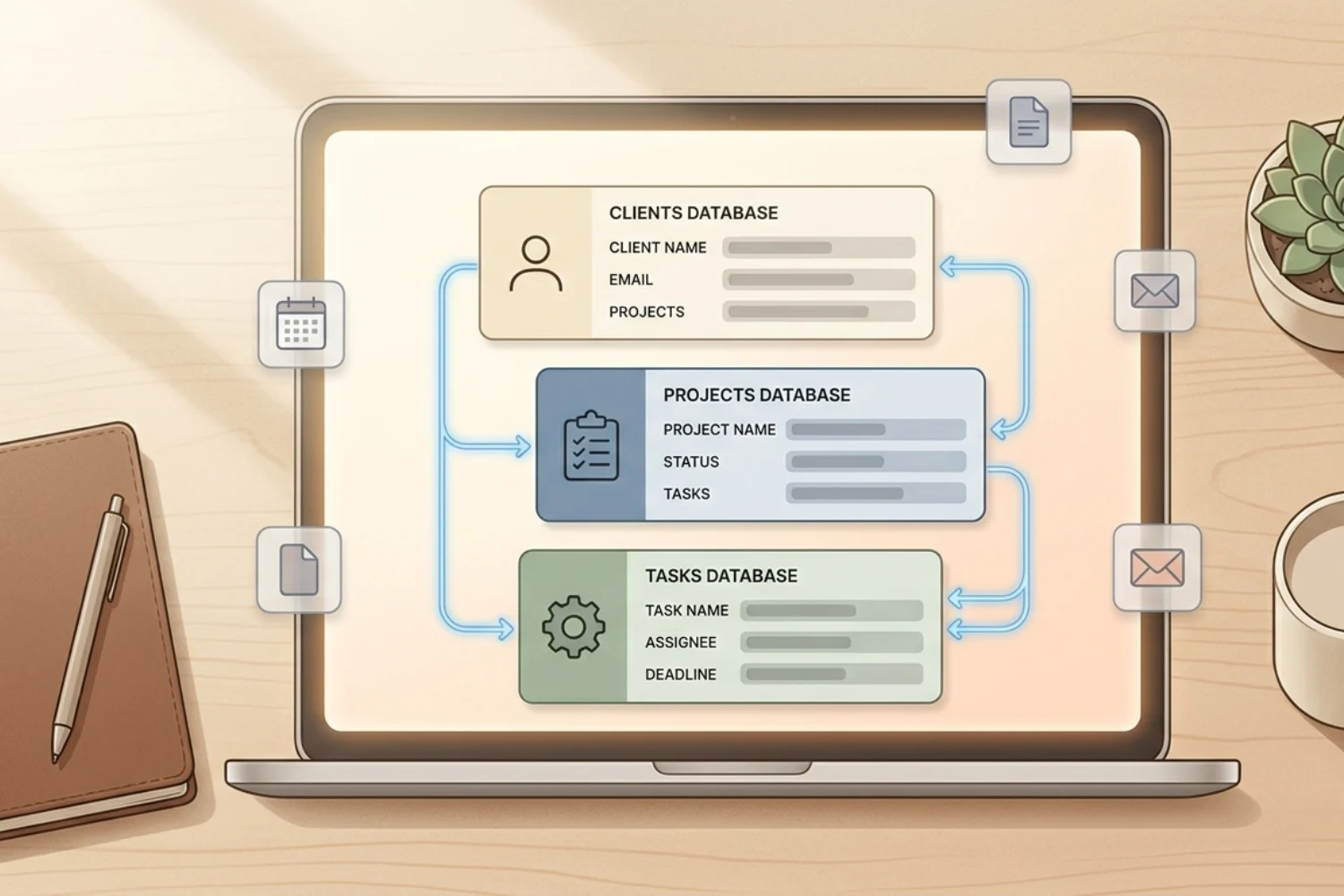
Notion database relations are the connective tissue that turns a set of disconnected lists into a full operating system for your work. A relation links one row in a database to a row in another database (or the same one), and once the link exists, both sides update in real time. That single feature is why teams pick Notion over spreadsheets, Trello, and Airtable for anything that requires more than a flat list of items.
This guide walks you through how database relations work in 2026, how they connect to the new data source terminology Notion introduced this year, the exact steps to set up your first relation, how to layer rollups on top for automatic totals and counts, and the six template patterns that show relations at their best.
Table of Contents
What You’ll Learn about Notion database relations
What Notion Database Relations Actually Do
At the core, a relation is a property on a database that stores links to rows in another database. Think of it as a smarter multi-select. Instead of typing free text or picking from a fixed list, you pick a real row that lives somewhere else in your workspace. That row keeps its full context, its own properties, its own comments, and its own subpages.
When you link a task to a project, three things happen at once:
- The task page shows the project name as a clickable link.
- The project page shows the task name as a clickable link.
- Any change to either side stays in sync forever.
That sync is the entire point. You never write a project name twice. You never lose the link between a task and its parent project. You never wonder which spreadsheet has the current status. One connection, both sides live.
Databases and Data Sources: The 2026 Terminology
Notion changed the language around databases in 2026. The row-and-property table you used to call a database is now technically a data source, and the container that holds one or more data sources is called a database. This matters for how you talk about relations, because a Notion relation property connects two data sources, and those data sources can live inside the same database or in completely different databases.
In practical terms, nothing you know about the relation property changed. If you built a Tasks database in 2024 and a Projects database in 2024, and you linked them with a relation, that relation still works exactly the same way in 2026. The difference is that when you open the property picker today, you will see the phrase “link to data source” instead of “link to database.” Same feature, updated label.
Both terms appear in this guide because both terms appear in the Notion interface right now, and both terms are what teams search for online. When you see “Notion database relations” and “Notion data source relations,” treat them as the same feature.
The Two Types of Relations
Every relation in Notion is either one-way or two-way. Picking the right type on day one saves you hours of cleanup later.
One-way relation. Only the source database shows the linked row. The target database has no idea the link exists. Use this when you want a lightweight pointer and no reciprocal view, for example a Notes database that references a Book database without cluttering the Book pages with a Notes list.
Two-way relation. Both databases show the linked row. When you link a task to a project, the project page shows the task. When you link a project to a client, the client page shows every project. This is the default and the right choice for almost every real workflow, because it turns each parent page into a live dashboard of its children.
When you create a relation, Notion asks whether you want to enable the two-way link. Say yes unless you have a specific reason to keep the target side clean. Two-way is what makes the workspace feel connected.
Step-by-Step: Create Your First Relation
Here is the shortest path from a blank workspace to your first working Notion database relations property.
- Open the database (data source) that will hold the link. This is the “child” side. In a Tasks + Projects setup, start on Tasks.
- Click the plus icon next to the last property column to add a new property.
- Pick Relation from the property type menu.
- Search for the target database. In this example, search for Projects and select it.
- Rename the property to reflect the relationship. On the Tasks side, name it “Project.” On the Projects side, name the reciprocal property “Tasks.”
- Toggle on Show on Projects to enable the two-way link. Confirm.
- Open any task and click into the new Project property. Pick the project you want to link. The Projects page now shows this task in its Tasks list.
That is the full setup. From this moment on, every task can point to a project, every project shows its own tasks, and both sides stay in sync forever.
Adding Rollups on Top of Relations
Relations are the connection. Rollups are the summary. A rollup property reads a value from every row linked through a relation and rolls it up into a single number, count, date, or checkbox on the parent side.
The classic example: a Projects database with a rollup that counts how many tasks in the Tasks database are marked Done, divided by the total count. That gives you a live progress percentage on every project row without a single manual update.
To add a rollup:
- Add a new property to the parent database (Projects in this example).
- Pick Rollup as the property type.
- Choose the relation the rollup will read through. Here you pick “Tasks.”
- Choose the property on the linked database to roll up. Pick “Status.”
- Choose the calculation. Count values gives you the total task count. Percent per group gives you the percentage of tasks in each status.
Every rollup is a live calculation. Change a task from In Progress to Done and the project’s rollup updates the same second. This is why relations plus rollups are the beating heart of Notion project management, Notion CRMs, Notion finance systems, and every serious Notion setup ever built.
Real-World Relation Patterns
Relations get abstract fast when you read about them in isolation. Here are the six patterns that show up in almost every working Notion setup, with the exact databases (data sources) each pattern connects.
| Pattern | Parent Database | Child Database | What the Relation Does |
|---|---|---|---|
| Project management | Projects | Tasks | Every task rolls up to a project |
| CRM | Clients | Deals + Interactions | Every deal and email is tied to a client record |
| Finance | Categories | Transactions | Every expense inherits a category for reporting |
| Content | Topics + Platforms | Content pieces | Every post is filed under a topic and a channel |
| Reading tracker | Books | Notes + Highlights | Every note stays tied to the book it came from |
| Software development | Releases | Bugs + Features | Every ticket ships in one specific release |
Each pattern uses the same two-way relation mechanic. The only difference is what the parent and child mean for your work.
Self-Referencing Relations
Sometimes a database needs to link to itself. Tasks with subtasks. Contacts with a reports-to hierarchy. Wiki pages with parent pages. Notion supports this with a self-referencing relation, and the setup is almost identical to a normal relation.
- Add a Relation property to your Tasks database.
- When the picker asks which database to link, choose This database.
- Notion recommends turning off two-way for self-references. Leave it off.
- Rename the property “Parent Task” or “Sub-tasks” depending on which direction you want it to face.
With a self-reference in place, every task can point to a parent, and any task’s page can show its children in a filtered view. This is how you build outline trees, org charts, and nested wiki structures inside a single data source.
Cross-Reference Tables for Many-to-Many
Some relationships are not parent-and-child. A book can have many authors, and each author can write many books. A student can enroll in many classes, and each class holds many students. These are many-to-many relationships, and the cleanest way to model them in Notion is a cross-reference table.
Create a third database (data source) that sits between the two entities. In the book-author case, that middle table is called Authorships. Each row in Authorships links to one book and one author, and holds any extra properties about that pairing: co-author order, royalty split, contract date. The Books database relates to Authorships. The Authors database relates to Authorships. Query either side and you get the full picture without duplicating rows.
This pattern feels like overkill on day one and pays off the moment your relationships need attributes of their own.
Common Mistakes to Avoid
Even with the right setup, teams trip on the same five mistakes when they start with Notion database relations. Watch for these.
- Forgetting to turn on two-way. You create a relation on the Tasks side and then wonder why the Projects side stays empty. Toggle two-way on unless you have a strong reason not to.
- Naming both sides the same thing. “Related” on both sides gives you two properties called “Related” and no context. Name each side for the role it plays: “Project” on Tasks, “Tasks” on Projects.
- Building rollups before the relation has data. A rollup with zero linked rows returns zero. Add three or four real links first, then add the rollup so you can see it work.
- Using select properties when a relation would fit better. A dropdown of client names is fine at first. The day you need to store an email, phone number, and deal history for those clients, you will wish you had made Clients its own database from day one.
- Duplicating information across databases. If a client email lives on the Clients row, do not copy it to the Deals row. Add a rollup on Deals that reads the email through the client relation. One edit, three databases update.
Ready-to-Use Templates That Show Notion database relations at Their Best
The fastest way to understand Notion database relations is to open a template that already uses them. These six paired templates each lean hard on relations and rollups, so you get to see the pattern working before you rebuild it from scratch.
Notion Starter Pack ships with tasks, projects, and daily planning already connected through two-way relations. Best starting point if you are new to Notion.
CRM V.2 is the reference implementation for client-and-deal relations. Every deal points to a client. Every interaction points to a client. Every task points to a deal. Rollups roll up deal value, next follow-up date, and account health across the whole pipeline.
Finance OS uses category-and-transaction relations to power monthly reporting. Every transaction relates to a category and an account. Rollups sum spend by category, by month, and by account without a single manual calculation.
Life Planner connects goals, projects, and daily tasks with cascading relations. Complete a task and the goal above it moves closer to done, all through rollup math.
Workflow & Automation OS pairs relations with custom agents. Once your databases connect, agents read the same graph and push updates, send reminders, and build weekly reports on top of your existing relations.
Software Development OS ties bugs, features, sprints, and releases together with relations and rollups so every ticket rolls up into a live sprint dashboard.
Open any of these, click into a relation property, and you will see the exact pattern this guide describes in action.
FAQs
What is the difference between a relation and a rollup in Notion?
A relation is the link between two rows in different databases (data sources). A rollup is a calculation that reads values through that link. Relations connect. Rollups summarize.
Can I create a relation between two data sources in the same database?
Yes. Since Notion supports multiple data sources inside a single database, you can add a relation property on one data source that points at another data source in the same database container. The behavior matches a cross-database relation.
How many relations can I add to a single database?
Notion does not publish a hard cap, and workspaces routinely run twenty or more relations on a single database. Practical performance stays smooth up to that point. Past that, split the database into smaller, focused data sources.
What is a two-way relation and when should I use it?
A two-way relation shows the link on both sides. Task shows Project. Project shows Task. Turn it on for anything that behaves like a parent-and-child pattern, and turn it off for lightweight one-way pointers or self-referencing relations.
Do custom agents work with database relations?
Yes. Custom agents (available since Notion 3.3 in May 2026) read the full relation graph. An agent can pull every task linked to a project, generate a status report, and post it to the project page. Each workspace gets 300 free credits per month to try agents, with paid credits at $10 per 1,000.
Start Connecting Your Workspace Today
Database relations are the difference between a Notion workspace that feels like scattered notes and one that feels like a real operating system. The mechanic is small: one property, one link, one toggle for two-way. The impact is everything downstream. Progress bars that update themselves. Client pages that pull in every deal. Project dashboards that always match reality.
Pick one of the six templates above, open the first relation property you find, and follow the link both ways. That thirty-second exercise teaches more than any tutorial. Then build one relation of your own in your own workspace: link a task to a project, or a note to a book, or a transaction to a category. Watch both sides update.
Once that click makes sense, every future Notion setup you touch will start with a relation diagram in your head first and a property picker second. That is the shift that turns Notion into your operating system.